Match your products to existing Amazon ASINs (Amazon Lookup & Multi-Offer Lookup)

Match your products to existing Amazon ASINs (Amazon Lookup & Multi-Offer Lookup)

When a product you sell is already on Amazon, you don't need to create a new listing. You can simply add your offer to the existing Amazon product. The app helps you find these matches with Amazon Lookup and Multi-Offer Listing.

What Amazon Lookup does

Amazon Lookup checks your products against Amazon's catalog using the product's barcode (UPC, EAN, or GTIN). If a matching product is found, the app:

  • Saves the matching ASIN on your product.
  • Changes the product status to Not Listed: Offer.

This means the product is ready to be uploaded as an Offer.

How to run Amazon Lookup

You can run it for your full catalog or for selected products.

For your full catalog

  1. Open the Listings page in the app.
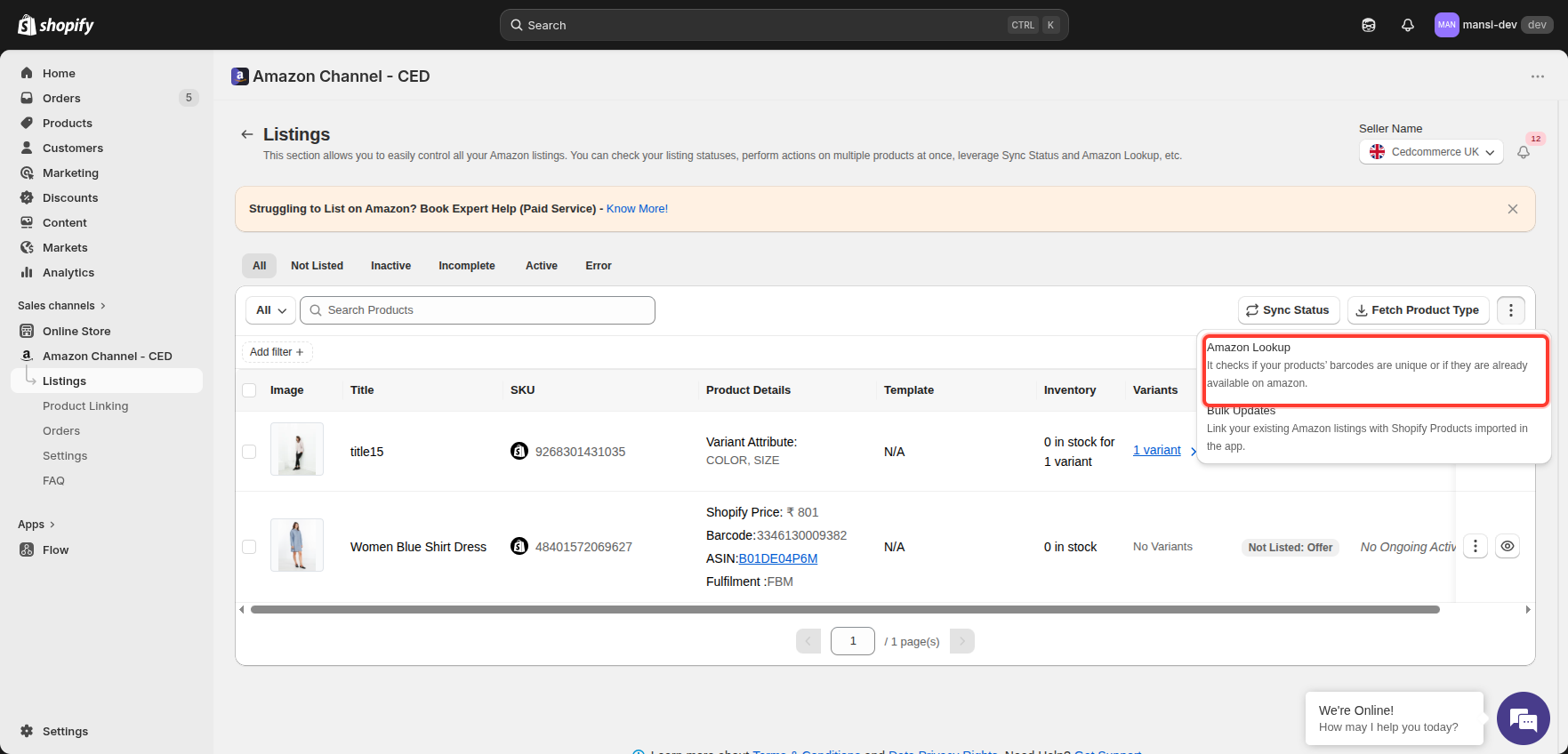
  2. Click the three-dot (⋮) menu at the top right (next to the "Fetch Product Type" button).
  3. Click Amazon Lookup.

Three-dot menu showing Amazon Lookup option for the full catalog

For selected products

  1. Open the Listings page in the app.
  2. Tick the products you want to look up.
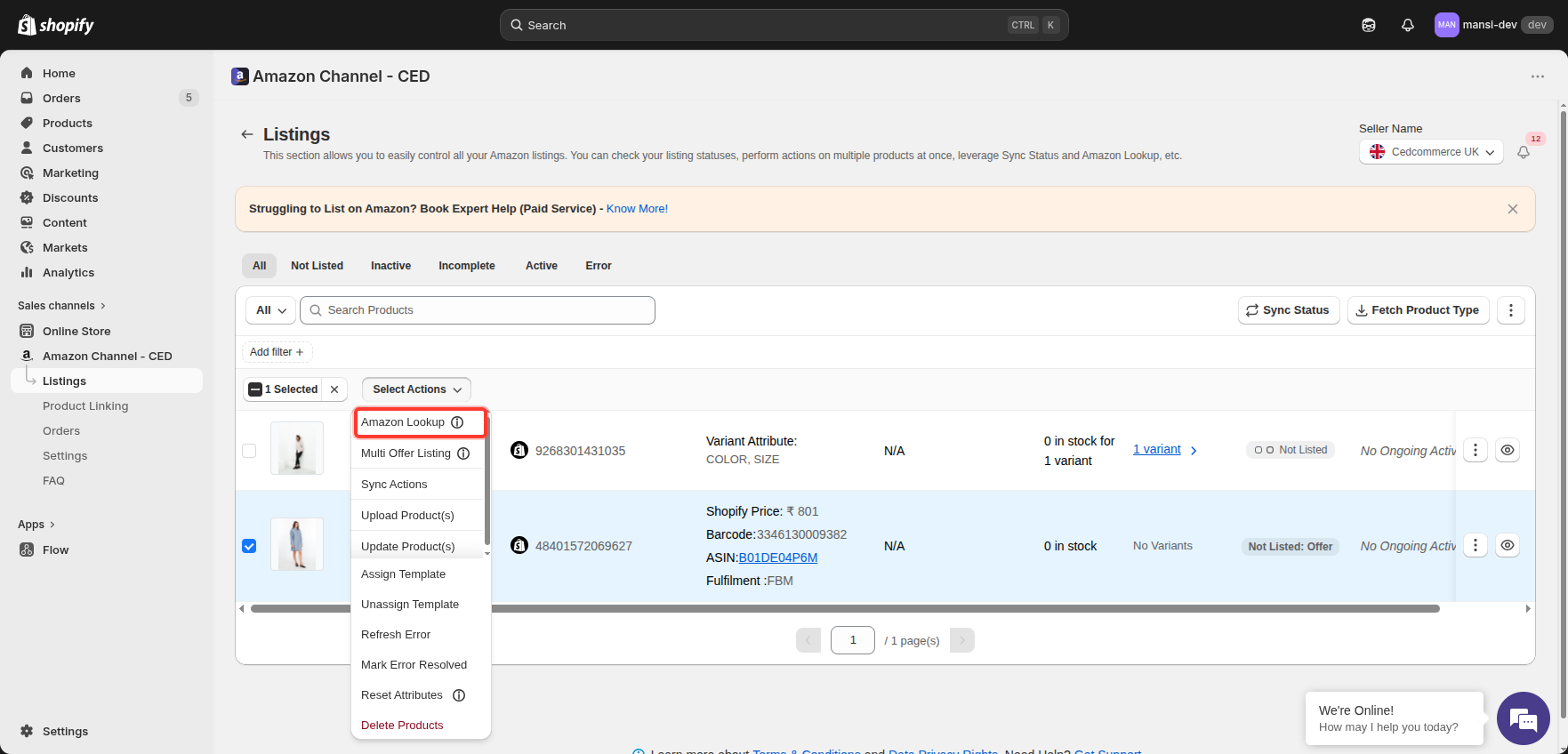
  3. Click Select Actions at the top.
  4. Choose Amazon Lookup.

Select Actions dropdown showing Amazon Lookup option

What if barcode-based lookup doesn't find a match?

If Amazon Lookup can't find a match by barcode, you still have a fallback: Multi-Offer Listing. This searches Amazon by your product's title and shows you possible matches.

How to use Multi-Offer Listing

  1. Open the Listings page.
  2. Tick the products you want to match.
  3. Click Select Actions.
  4. Choose Multi Offer Listing.

Select Actions dropdown showing Multi Offer Listing option

  1. A modal opens listing every Amazon ASIN that matches your product's title — with title, brand, and image.
  2. Click Link on the ASIN you want to attach your offer to.
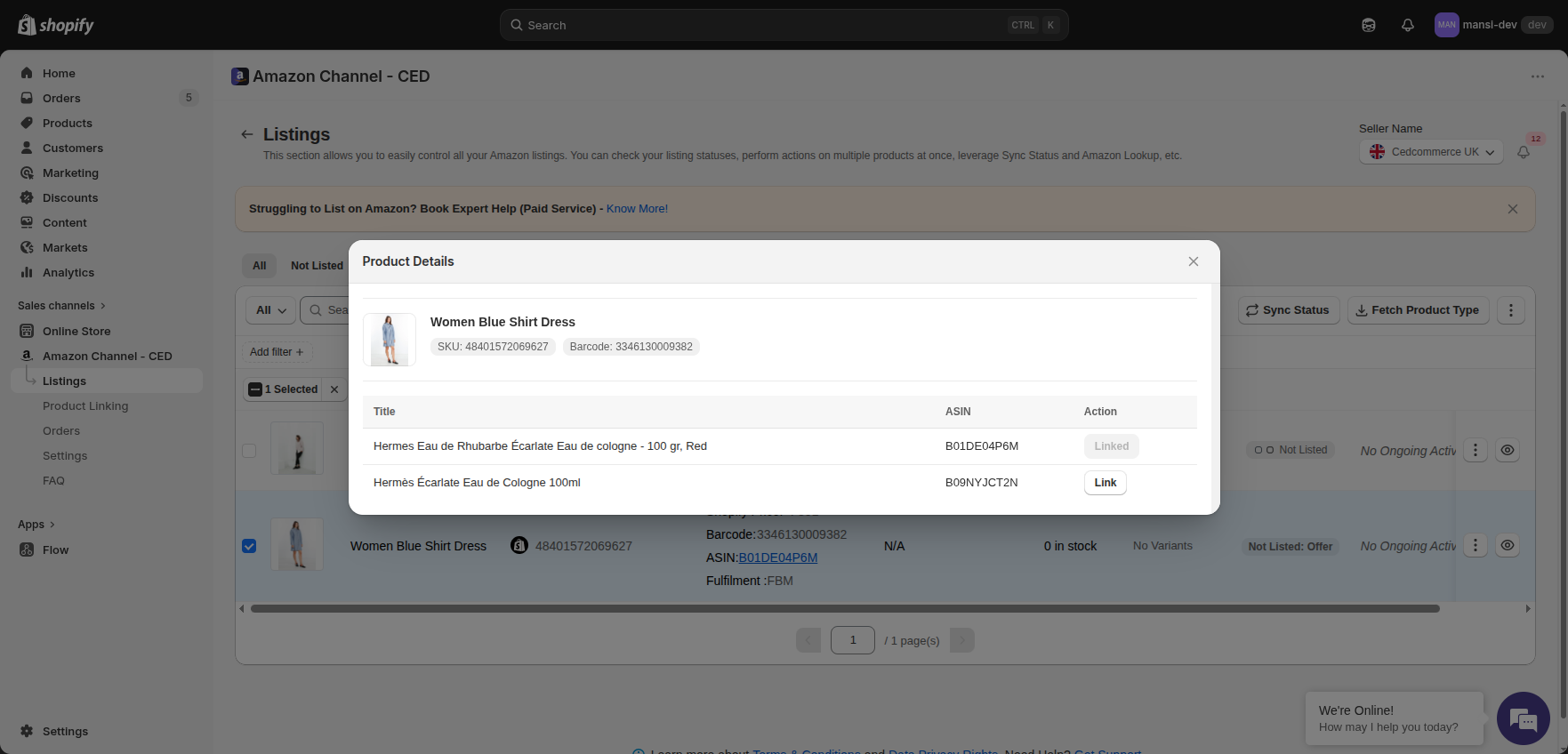
Multi Offer Listing modal showing matching ASINs with Link buttons

The app saves your choice and updates the product's ASIN.

    • Related Articles

    • Difference between New Listing and Offer Listing

      When you send a product to Amazon from the app, it can go up in one of two ways — as a New Listing or as an Offer Listing. Here's what each one means and when it's used. New Listing A New Listing is created when your product does not exist on Amazon ...
    • Upload a product as an Offer Listing

      Once Amazon Lookup finds a match for your product (status Not Listed: Offer), you can send it to Amazon as an Offer Listing. Your SKU gets attached to the existing Amazon product page — so you only need to fill a few fields, not the full product ...
    • Error 8056: Incorrect ASIN Provided

      The ASIN you provided for the SKU is wrong, doesn't exist in Amazon's catalog, or is in an invalid format. ASINs must match an existing Amazon listing exactly — any mismatch breaks the upload. Why it happens Incorrect ASIN entry. The ASIN entered is ...
    • Onboarding the CedCommerce Amazon Channel

      Onboarding Welcome to the CedCommerce Amazon Channel App onboarding process! This guide will help you install the app in your Shopify store and integrate it with your Amazon account. To ensure a successful start, have the following prerequisites ...
    • Getting Started with CedCommerce Amazon Channel

      Welcome to the CedCommerce Amazon Channel App! Effortlessly manage your Amazon business from Shopify with a single, integrated solution. The CedCommerce Amazon Channel App allows sellers to connect multiple Amazon Seller Accounts in one place, ...