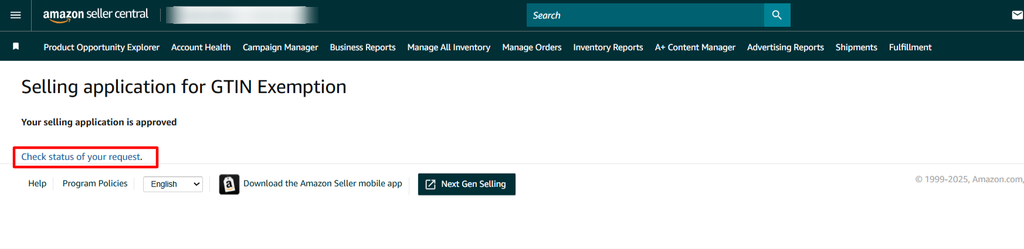
Apply for GTIN Exemption when your product has no UPC/EAN/ISBN
A GTIN (Global Trade Item Number) exemption lets you list products on Amazon without a standard product identifier such as a UPC, EAN, or ISBN. It's useful for:
- Handmade, custom-made, or private-label products
- Products that don't have a manufacturer-issued barcode
- Sellers who want to avoid buying barcodes for every product
Once Amazon approves the exemption, you can list the product without a Product ID, which speeds up listing and saves you the cost of buying barcodes.
Reference videos: Apply for Product ID, or GTIN, exemption · How To Apply For Amazon GTIN Exemption 2025
Steps to request a GTIN Exemption in Amazon Seller Central
- Log in to Amazon Seller Central and click the three-dot menu on the left-hand side.

- Go to Catalog → Add Products.

- Click Blank Form, then click Start.
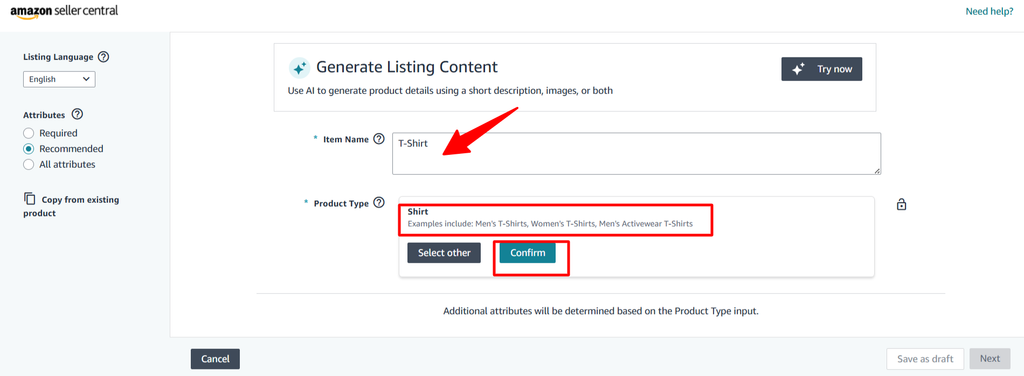
- Enter the product name in the Item Name field, select the appropriate Product Type, and click Confirm.
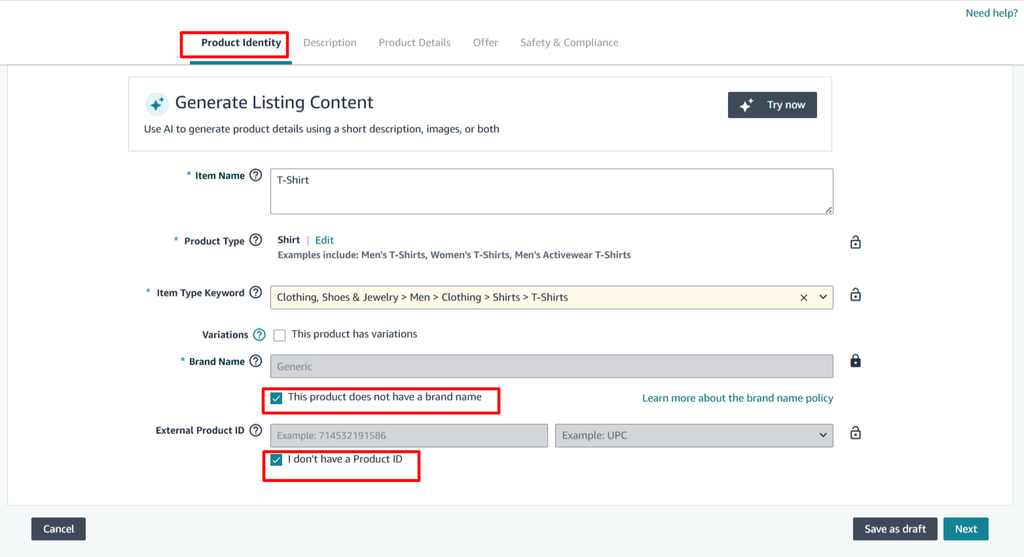
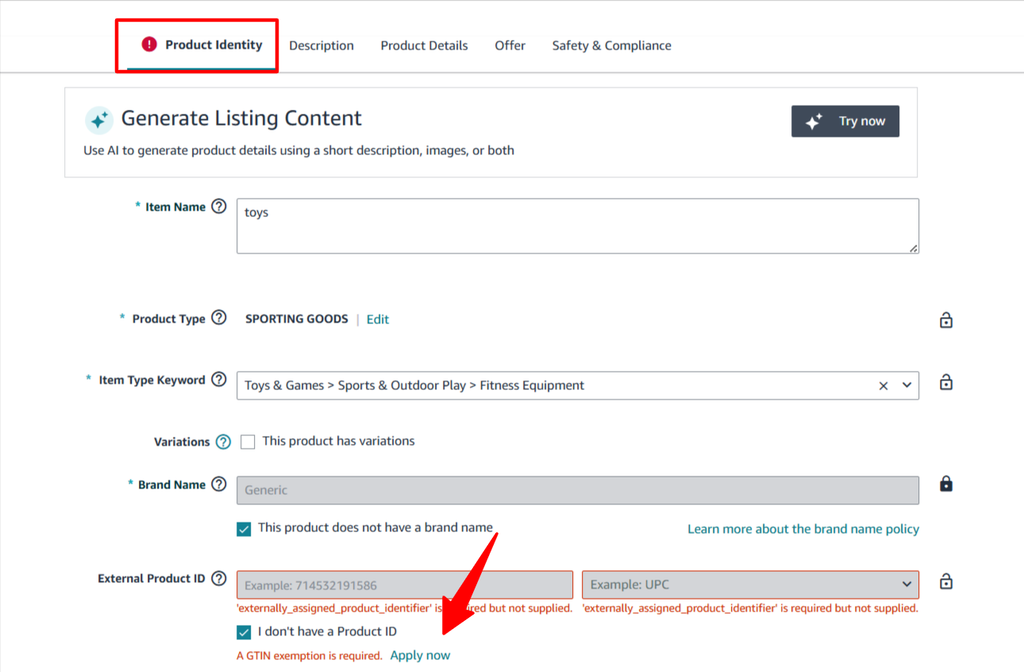
- In the Brand Name section, tick “This product doesn’t have a brand name” if your brand is not enrolled in the Amazon Brand Registry. Amazon will automatically set the brand to Generic. Click Next to continue.
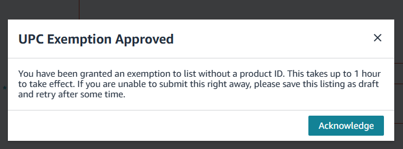
- A pop-up appears: “UPC Exemption Approved.” Click Acknowledge to proceed.
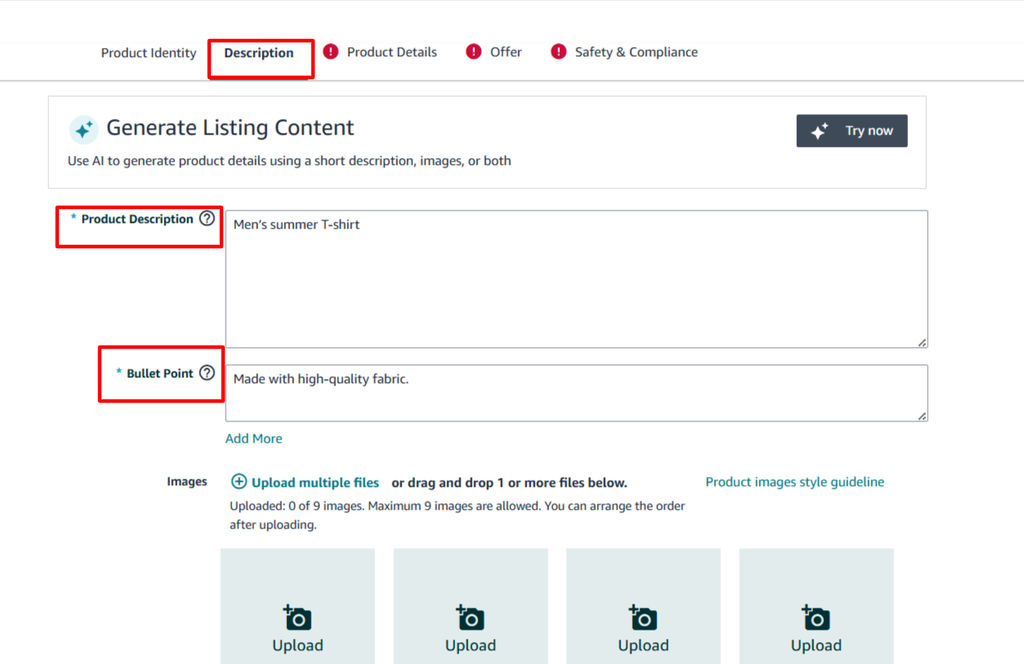
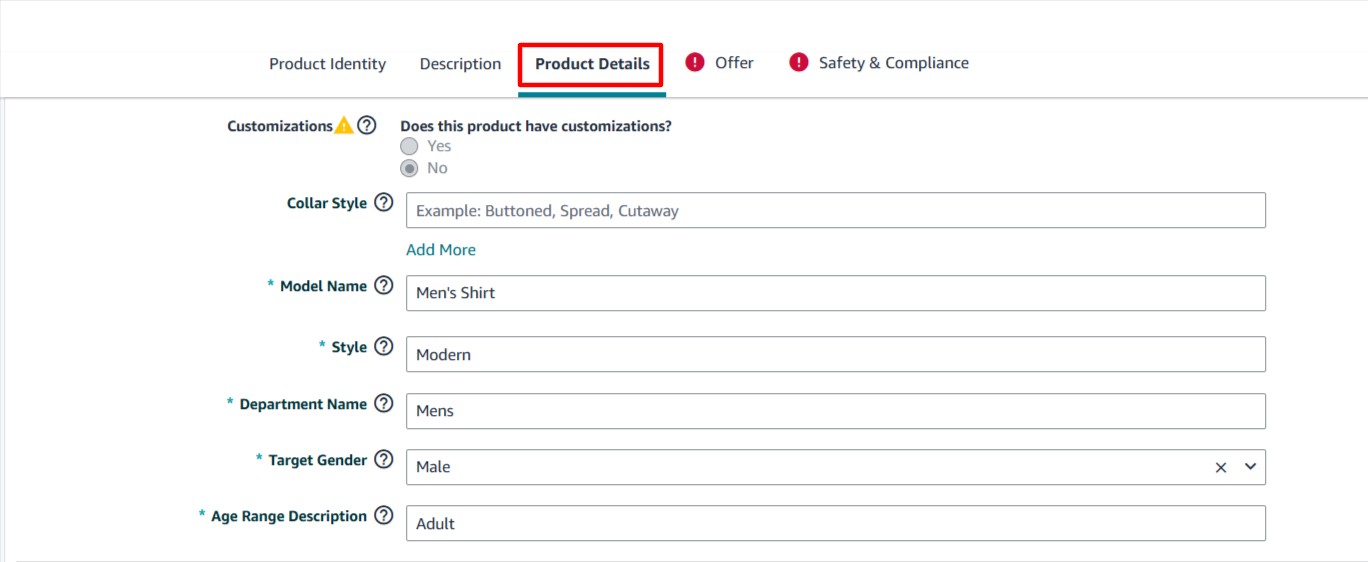
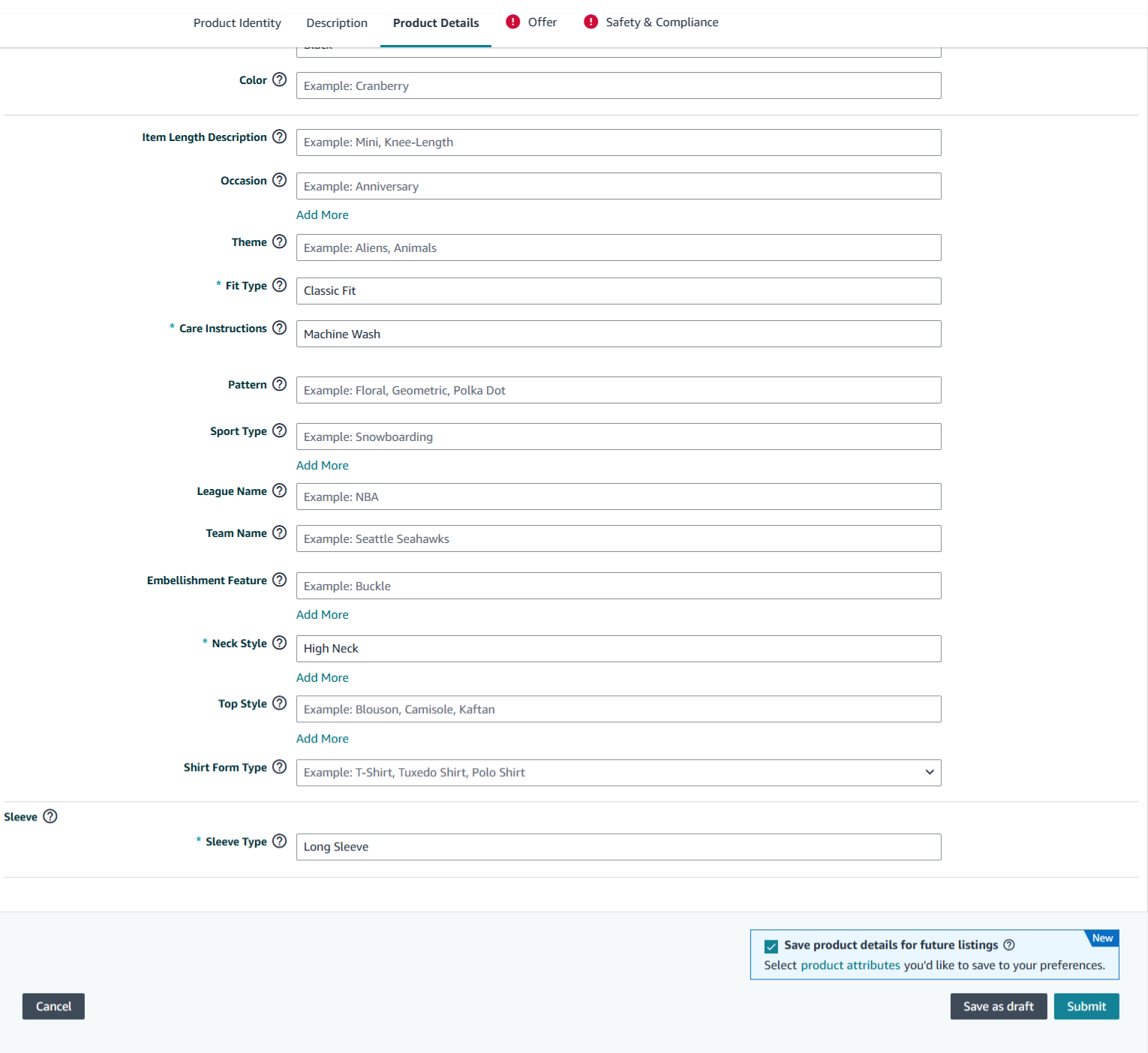
- Fill in the required fields under each tab one by one — Description, Product Details, Offer, and Safety & Compliance.
Note: Product images are not mandatory at this stage. The current values are placeholders, so you can enter any basic details for now.
Description section — add a Product Description (e.g., “Men’s Summer T-Shirt”) and bullet points highlighting key features (e.g., “Made with high-quality fabric”).
Product Details section — varies based on your product type.
Offer section
Safety & Compliance section
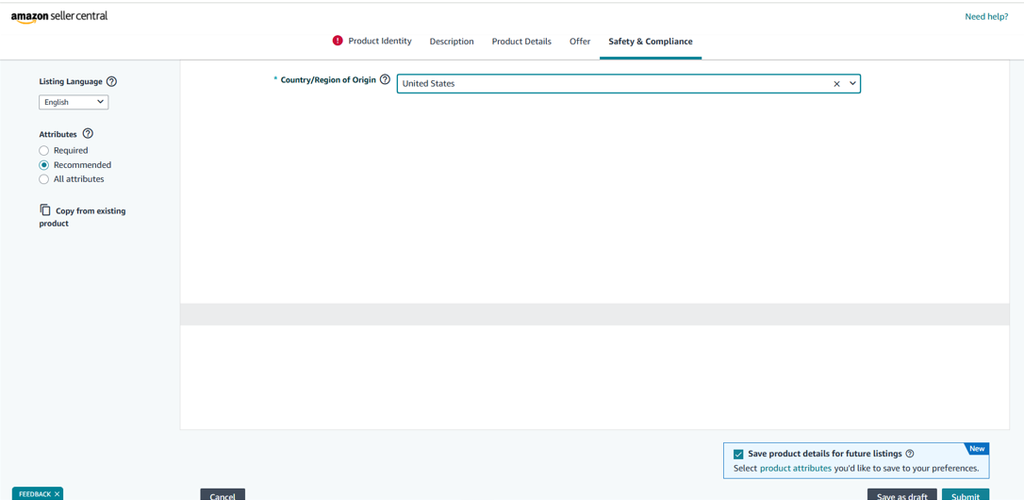
- Once every required field is filled, you’ll see Product Identity highlighted in red. Click Apply now to request the exemption.
- Once approved, your GTIN exemption is active and you can list the product without a Product ID (UPC).