Turn off Auto Update for a linked Amazon Product
What the two checkboxes do
The Auto Update Settings dialog has two checkboxes — both on by default:
- Auto Sync — keeps the link alive automatically. If you unlink the product later, having this checked means the app will try to re-link it automatically the next time Sync Status runs.
- Auto Status Update — controls whether the product's status syncs from the Product Linking section to the Listings page. When it's on, any status change (Active → Inactive, etc.) flows automatically into Listings for that linked product. When it's off, the Listings page is left as-is for this product, even though the link itself stays intact.
Unchecking a box turns that automation off for the product; checking it keeps it on.
Steps
- From the app's left sidebar, open the Product Linking section and switch to the Linked tab.
- Find the product you want to manage. Use the Search Amazon Products bar to look up by SKU or title if needed.
- Click the three vertical dots icon at the right of the row, then click Auto Update off.
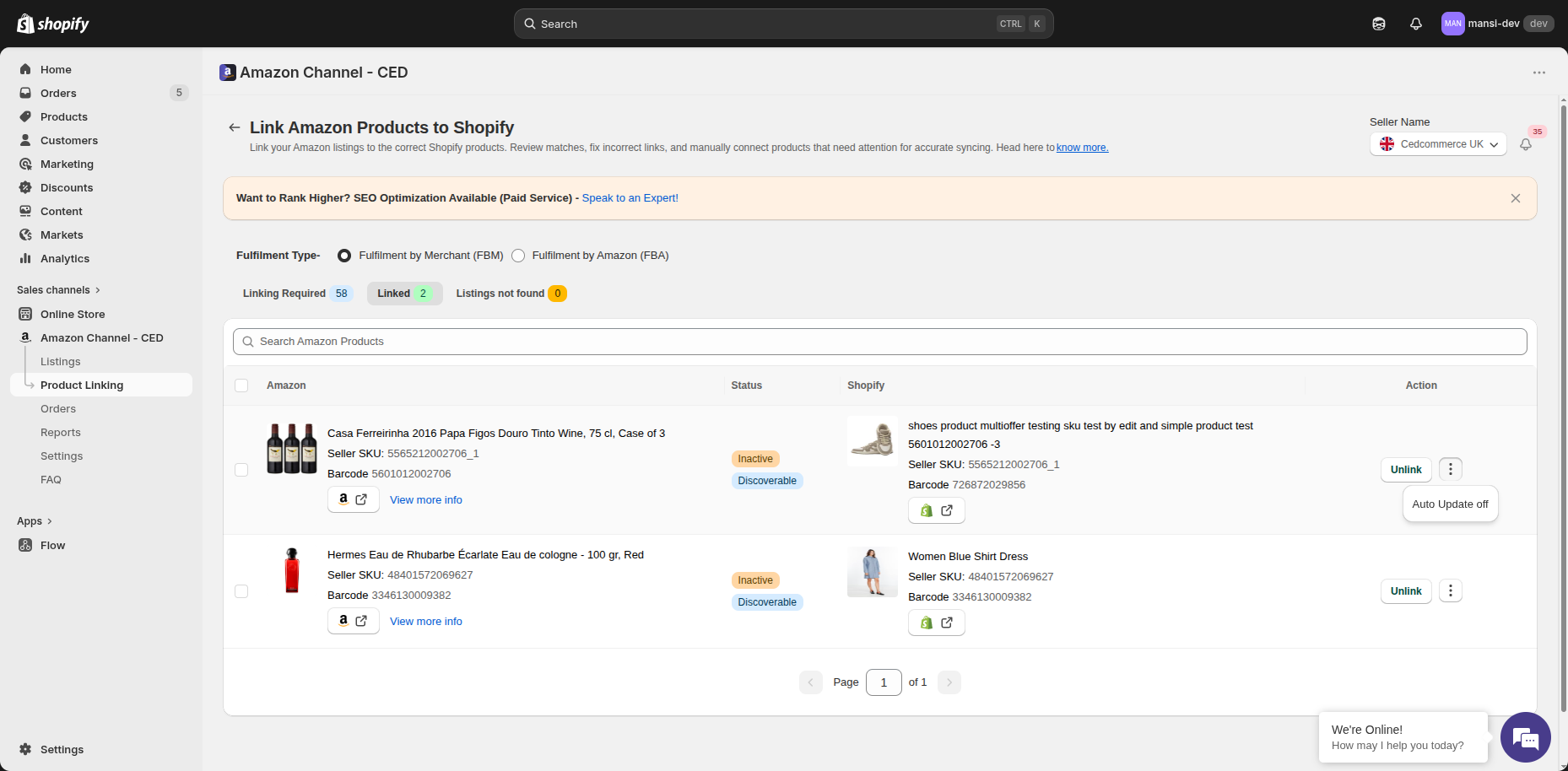
- The Auto Update Settings dialog opens. Tick or untick:
- Auto Sync — uncheck to stop the app from auto-linking this product
- Auto Status Update — uncheck to stop pushing status changes to the Listings page for this product
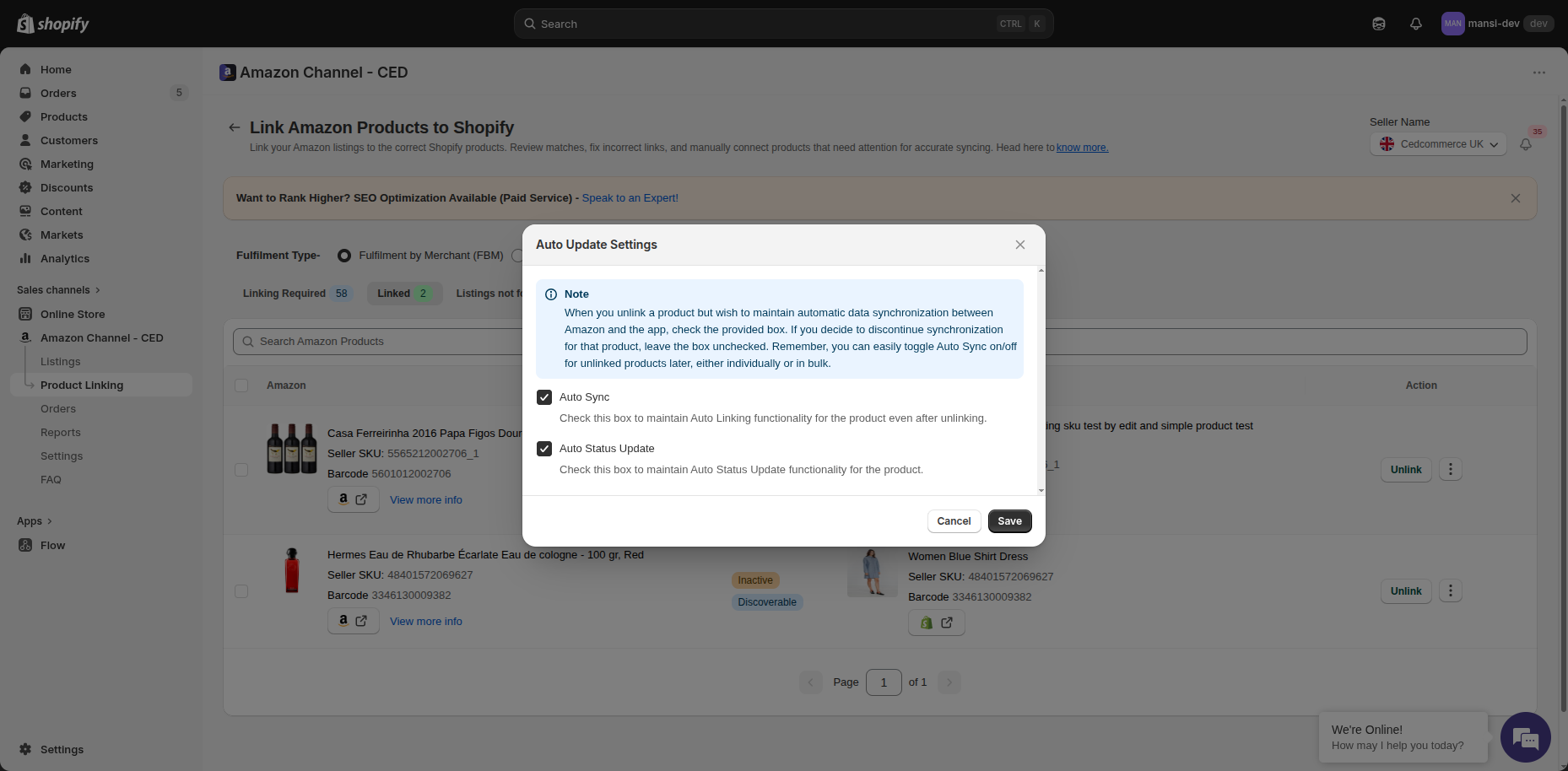
- Click Save.
From now on, only the automations you left checked will run for this product. The rest of your linked products are unaffected.
Note: Turning Auto Status Update off does not break the link itself. The product stays linked, and the Product Linking section still reflects the latest data from Amazon — but the Listings page will not change automatically based on those updates for this product.
Tip: If you change your mind later, open the Auto Update Settings dialog again from the same three-dots menu and re-check the boxes.