Bulk-link Amazon Products to Shopify Products using a CSV
When your Amazon SKU or barcode is different from the Shopify SKU/barcode, Sync Status cannot auto-link those Amazon Products. Linking them one by one with the Link button works, but it's slow when you have hundreds of products. Instead, you can upload a single CSV that pairs each Amazon Product with the matching Shopify product, and the app links them all in one go.
Two ways to identify your Shopify products in the CSV
- Linking by Shopify SKU — CSV columns:
amazon_sku,shopify_sku - Linking by Shopify Variant ID — CSV columns:
amazon_sku,variant_id
The app only links products specified in the CSV — every other product is left untouched.
Note: If a Shopify product in your CSV is already linked to a different Amazon Product, the app will unlink it first, then re-link it according to the new CSV. Make sure the pairings in your CSV are correct before uploading.
Steps to bulk-link via CSV
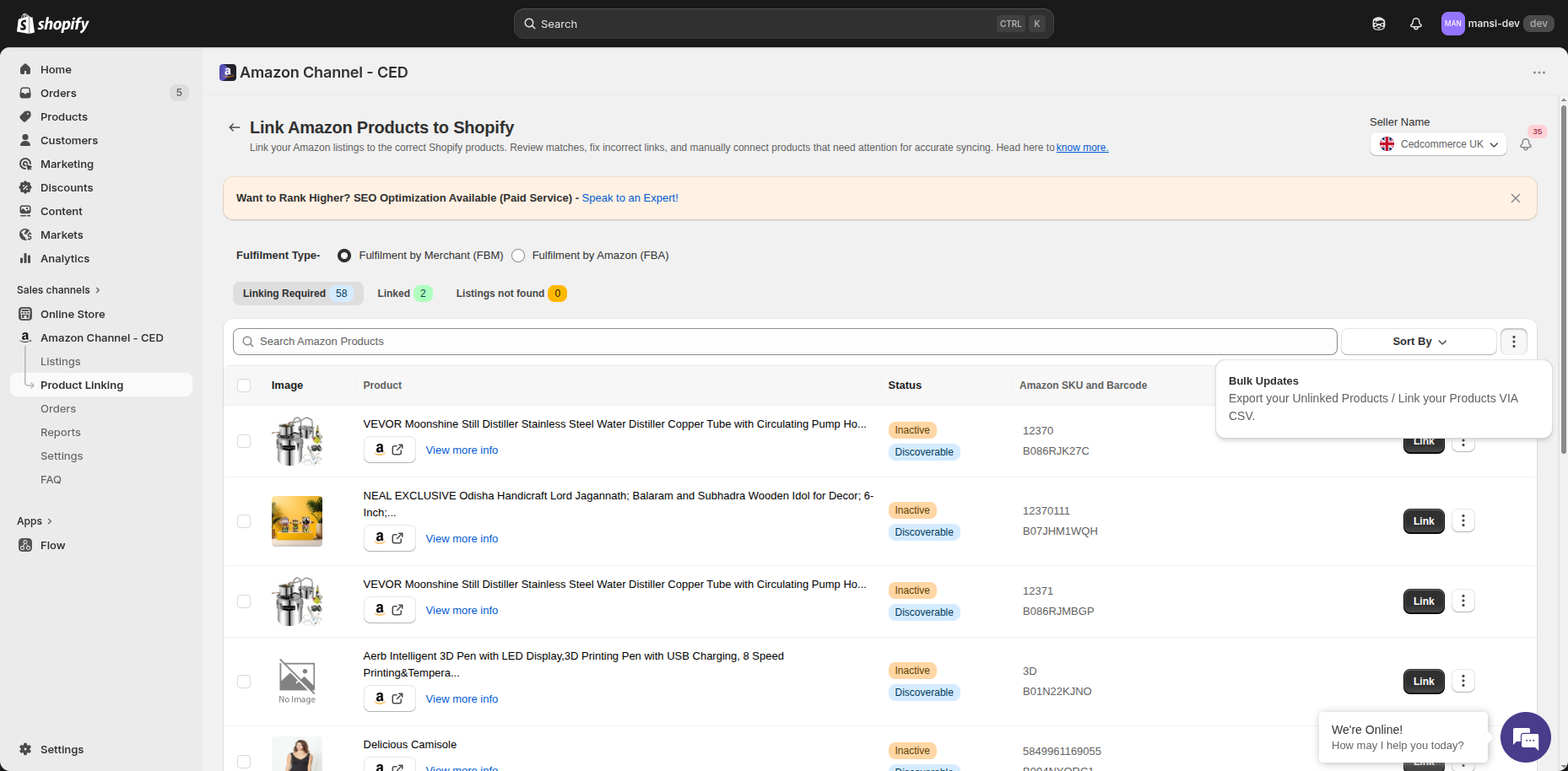
- Open Product Linking from the left menu and stay on the Linking Required tab.
- Click the More actions (three vertical dots) icon at the top right of the toolbar.
- Click Bulk Updates in the popover.
- The Bulk Update dialog opens. Switch to the Import tab.
- Under Select Linking Method, pick either Linking by Shopify SKU or Linking by Shopify Variant ID.
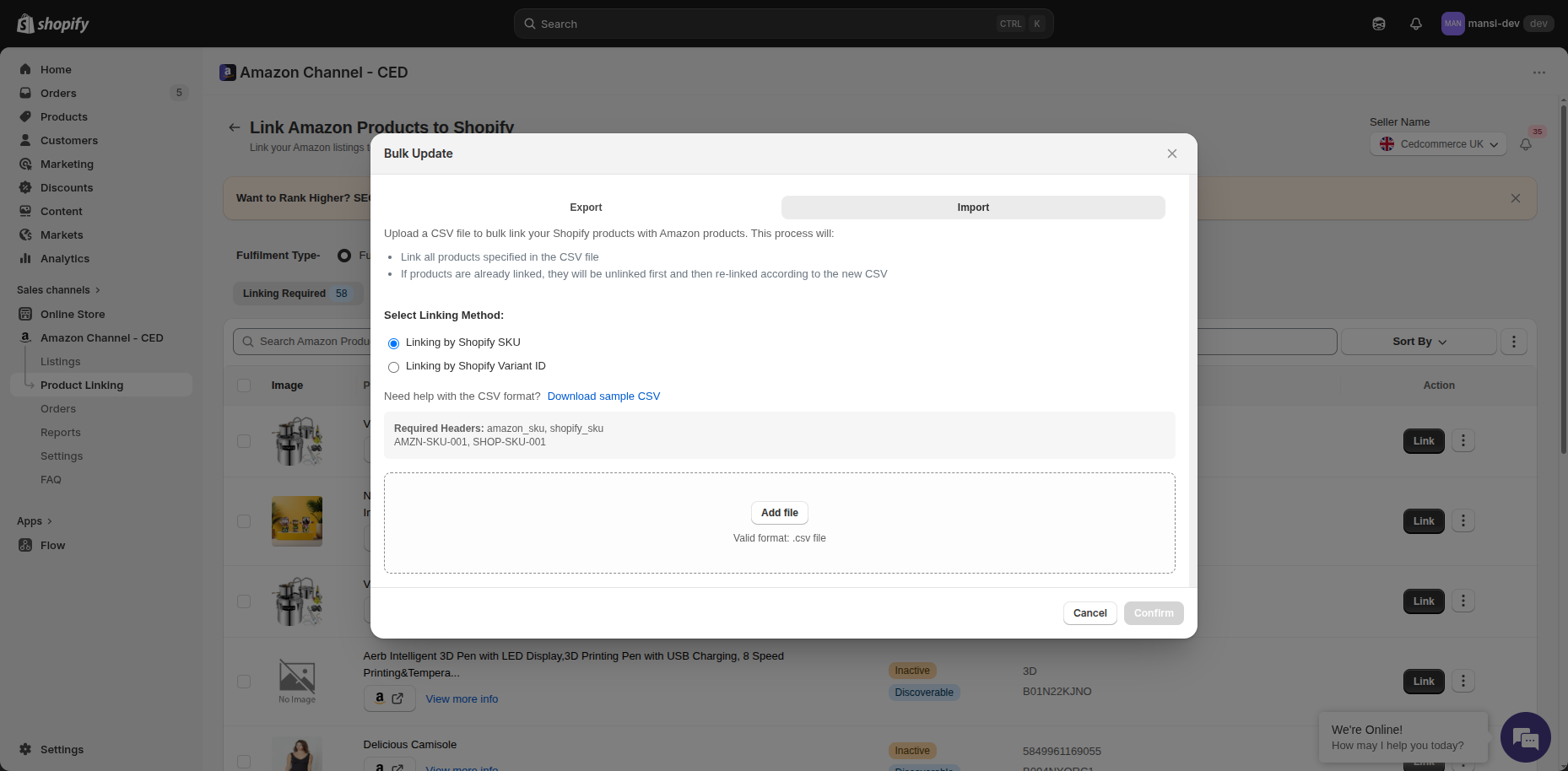
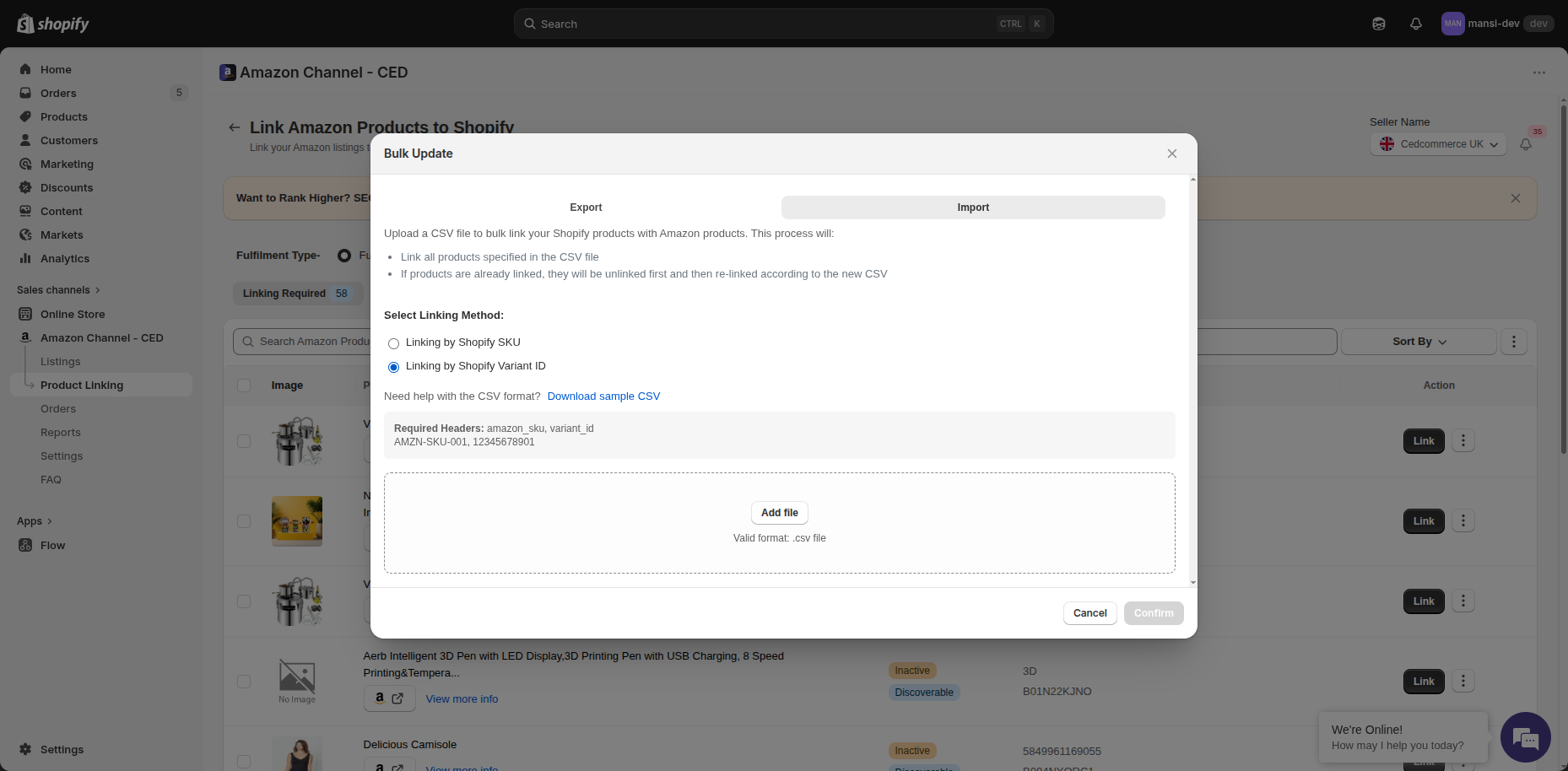
- Click Download sample CSV to start from the correct format.
- Open the sample (or your own file) in Excel/Sheets and fill the required columns:
- SKU mode:
amazon_sku, shopify_sku(e.g.,AMZN-SKU-001, SHOP-SKU-001) - Variant ID mode:
amazon_sku, variant_id(e.g.,AMZN-SKU-001, 12345678901)
- SKU mode:
- Save as
.csv, click Add file in the dialog (or drop the file into the upload area), and click Confirm.
The app picks up the file, validates the headers, and queues the linking job. You can keep using the app — once it finishes, you can check the progress in the Recent Activities section or in the Notification section. The successfully linked products move from Linking Required to Linked.
Tip: A result CSV is generated only if some rows failed to link and is available from the Recent Activities section. It lists every failed Amazon SKU along with the reason, so you can correct the CSV and re-upload. If every row succeeds, no result CSV is produced.