Know how to check in-app notifications and clear unread alerts?
The bell icon in the top-right of every page opens the in-app notifications panel — your single feed for app events (payments, sync runs, exports, errors) and CedCommerce announcements.
Open the notifications panel
- In the top-right of the app, find the bell icon. The badge on the bell shows the count of unread Critical alerts.
- Click the bell to open the panel.
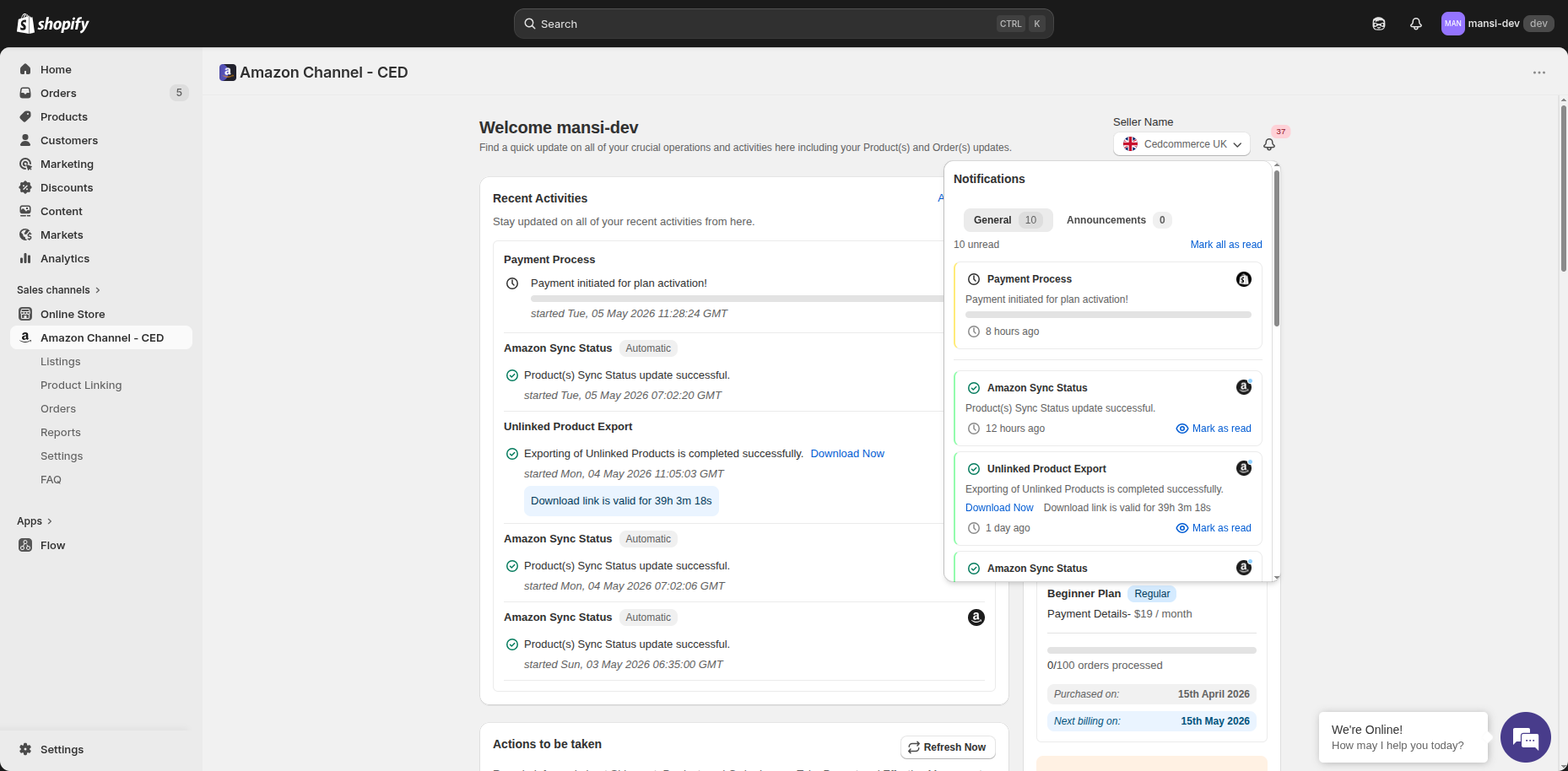
The two tabs
| Tab | What it shows |
|---|
| General | All in-app event notifications — payment processing, Amazon Sync Status runs, exports, errors, and other operational updates. Each row carries a status icon, message, and timestamp. |
| Announcements | Product updates and announcements from the CedCommerce team. |
Clear unread alerts
- Click Mark as read on any individual notification to dismiss its unread state.
- Click Mark all as read at the top of the panel to clear every unread item in the current tab in one go.
- Click View all notifications at the bottom of the panel to open the full notifications page.
Note
The bell badge resets to 0 once you mark all alerts as read. New unread Critical alerts will increment the badge again as they arrive.
Related Articles
Email notifications in the CedCommerce Amazon Channel app
The app sends email alerts so you know when something needs your attention — your monthly order limit is filling up, or an order/shipment/refund/cancellation has failed to sync. All of these are managed from one place: Settings → Notifications → ...
Getting Started with CedCommerce Amazon Channel
Welcome to the CedCommerce Amazon Channel App! Effortlessly manage your Amazon business from Shopify with a single, integrated solution. The CedCommerce Amazon Channel App allows sellers to connect multiple Amazon Seller Accounts in one place, ...
Onboarding the CedCommerce Amazon Channel
Onboarding Welcome to the CedCommerce Amazon Channel App onboarding process! This guide will help you install the app in your Shopify store and integrate it with your Amazon account. To ensure a successful start, have the following prerequisites ...
Uninstall the CedCommerce Amazon Channel app
Remove the CedCommerce Amazon Channel app from your Shopify store. Uninstalling clears all data the app holds for this store — there is no way to restore it on reinstall. Tip: If you're facing any kind of issue while using the app, contact support ...
Add an alternate email for notifications
If you'd like a second address — an ops inbox, a teammate, or a separate support channel — to receive the same alerts, add it as an Alternate email id under Settings → Notifications → Email. Add and verify an alternate email In the app, go to ...