Know how to check the total count of pending shipments, failed orders, and product errors that need action?
The Actions to be taken card on the Dashboard surfaces everything that's blocking a smooth selling flow — split into three tabs so you can prioritise quickly.
Open the card
In the app, go to the Dashboard. Scroll to the Actions to be taken card. Click Refresh Now to pull the latest counts.
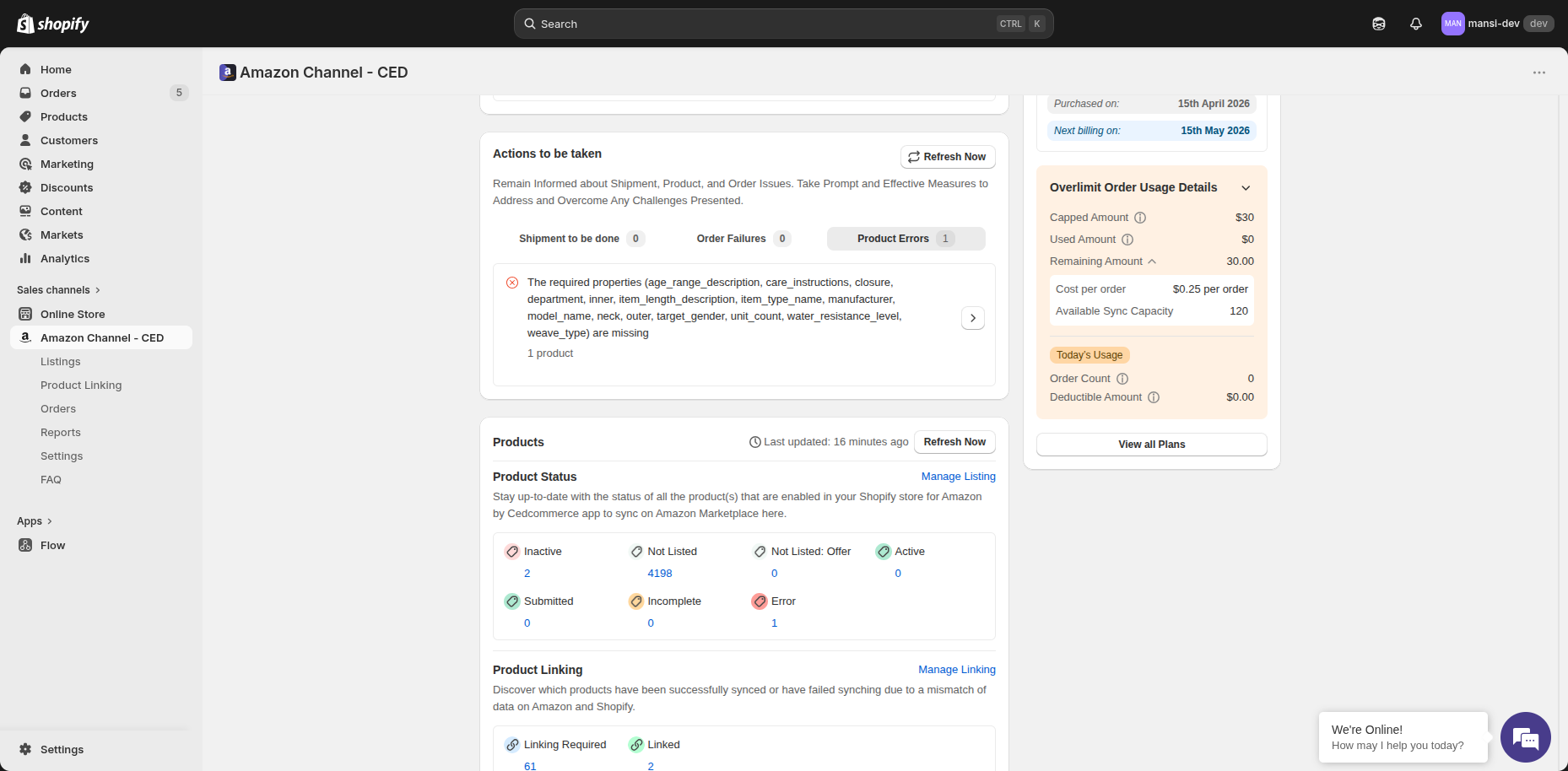
The three tabs
| Tab | What it shows | Where to act |
|---|
| Shipment to be done | Orders that are waiting to be shipped from your Shopify store (badge shows the count). | Click an order to open it and add tracking. |
| Order Failures | Amazon orders that didn't sync to Shopify or had refund issues. | Click into the order to see the failure reason and retry. |
| Product Errors | Listing, attribute, or upload errors flagged by Amazon. | Click the row to view the missing/invalid attributes; fix and retry the upload. |
Note
Counts update on demand via Refresh Now and on each new sync. Resolving items here directly improves your seller metrics (VTR, ODR, listing health).
Related Articles
Order failed: SKU/product not found
When an Amazon order lands in the Errors tab and you click on Failed Order, the dialog shows the failure reason. A "product not found" reason has two flavours, distinguishable by what you see in the dialog. 1. "No products found" with the red banner ...
Why an Amazon order isn't yet imported
If an order you're expecting from Amazon hasn't appeared in the app, one of these three things is almost always why. 1. The order is still Pending on Amazon The app only imports orders after Amazon moves them past Pending — Unshipped for FBM, Shipped ...
Getting Started with CedCommerce Amazon Channel
Welcome to the CedCommerce Amazon Channel App! Effortlessly manage your Amazon business from Shopify with a single, integrated solution. The CedCommerce Amazon Channel App allows sellers to connect multiple Amazon Seller Accounts in one place, ...
Which Amazon orders sync to Shopify, and how
Once your store is connected, Amazon orders flow into the CedCommerce Amazon Channel app on their own — there's nothing to set up, and you don't need to refresh or run a manual sync. Where to find your orders Open Orders in the left navigation. Every ...
Know how to check the total count of products that are Active, Not Listed, Submitted, or in Error on Amazon?
The Product Status sub-card on the Dashboard breaks every Shopify product enabled for Amazon syncing into a status bucket — so you can see at a glance how many are live, how many are still in the queue, and how many need attention. Open the card Go ...