Export your unlinked Amazon Products as a CSV
If you want to work with your Amazon Products outside the app — for example, to match them with Shopify products in a spreadsheet and then bulk-link them back — the app can export your unlinked products to a CSV file.
You can export either:
- Selected products — tick the checkbox on each row in the Linking Required tab, then export only those
- All unlinked products — export every Amazon Product currently waiting in Linking Required
Steps to export
- From the app's left sidebar, open the Product Linking section and stay on the Linking Required tab — this is where every unlinked Amazon Product is listed.
- (Optional) If you want to export only some products, tick the checkbox on each row.
- Click the More actions (three vertical dots) icon at the top right of the toolbar, then click Bulk Updates.
- The Bulk Update dialog opens — stay on the Export tab (selected by default).
- Choose:
- Export Selected Products — exports only the products you ticked
- Export All Unlinked Products — exports every product on the Linking Required tab
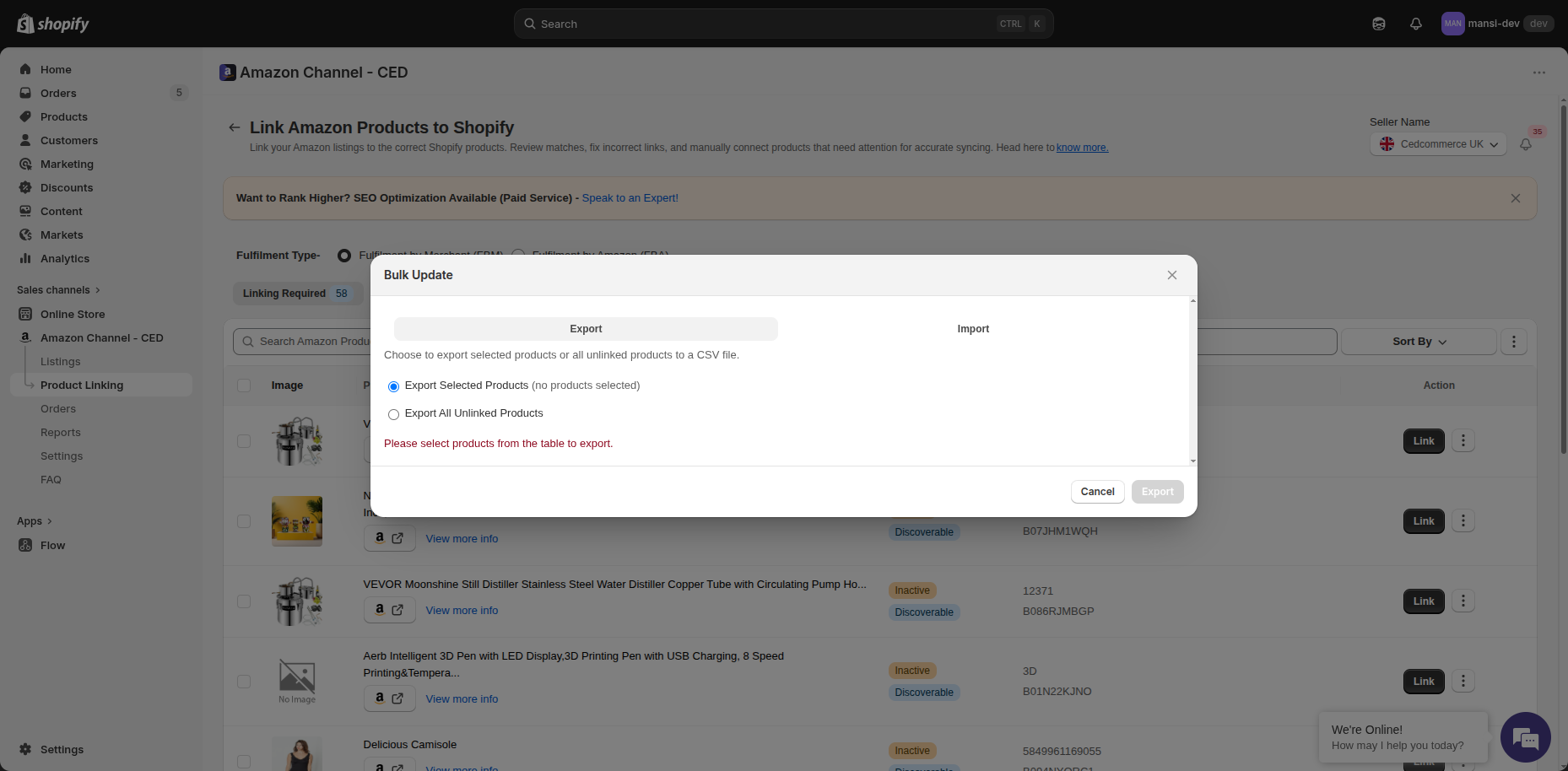
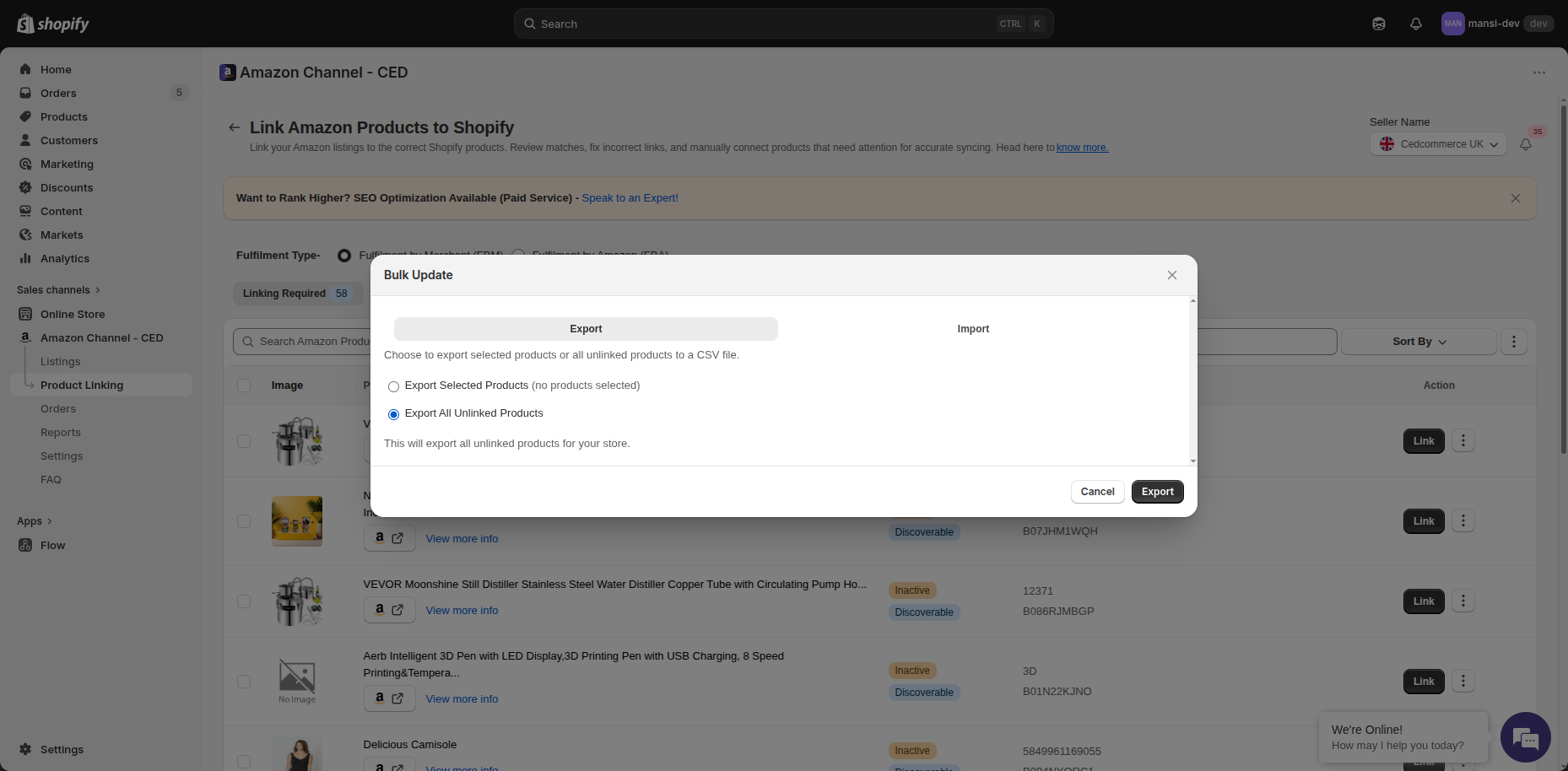
- Click Export.
The app starts preparing the CSV in the background. You can keep using the app — once it's ready, you can check the progress in the Recent Activities section or in the Notification section, and download the CSV from there.
What the CSV contains
Each row in the exported CSV has these columns for an unlinked Amazon Product:
amazon_sku— Seller SKU of the Amazon Producttype— Product type (simple / parent / variation)product-id— Amazon's internal product IDitem-name— Title of the Amazon Productvariant_id— Shopify Variant ID (left empty since the product is unlinked)
Tip: A common workflow is to export all unlinked products → fill in the matching Shopify SKU or Variant ID in a spreadsheet → save as CSV → upload it back through Bulk Updates → Import. The exported CSV is shaped to make this round-trip easy.