Link Amazon Products under Linking Required to Shopify products
Sync Status cannot auto-link an Amazon listing to a Shopify product when their SKU and barcode don't match. Such listings stay under Linking Required in the Product Linking section, and you can pair them with the right Shopify product yourself using the Link option.
Steps to link a product
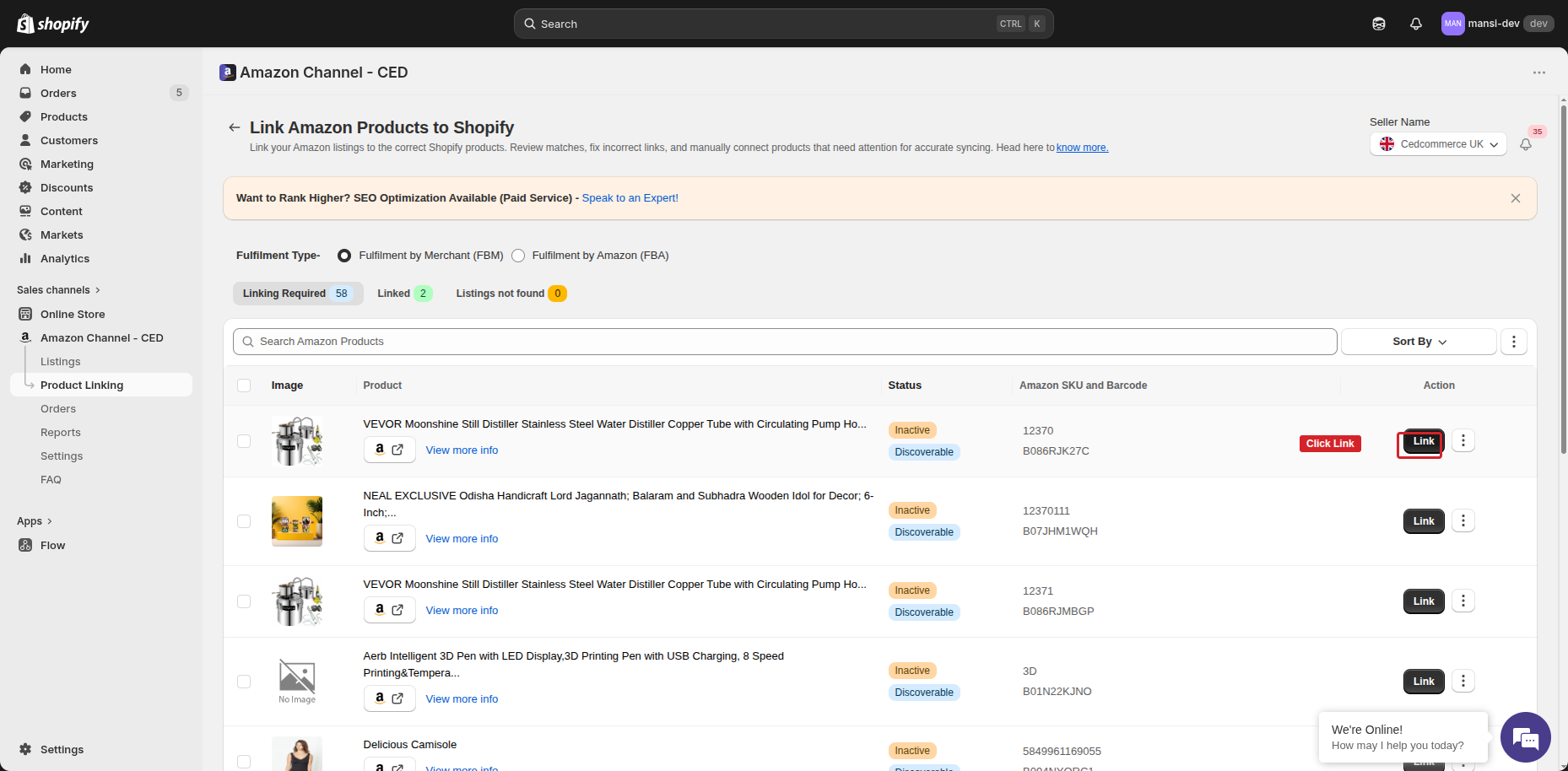
- Open Product Linking from the left menu, pick FBA or FBM under Fulfilment Type, and stay on the Linking Required tab.
- Find the Amazon listing you want to link. Each row shows the Amazon product image, title, ASIN, and Amazon SKU.
- Click the Link button on that row.
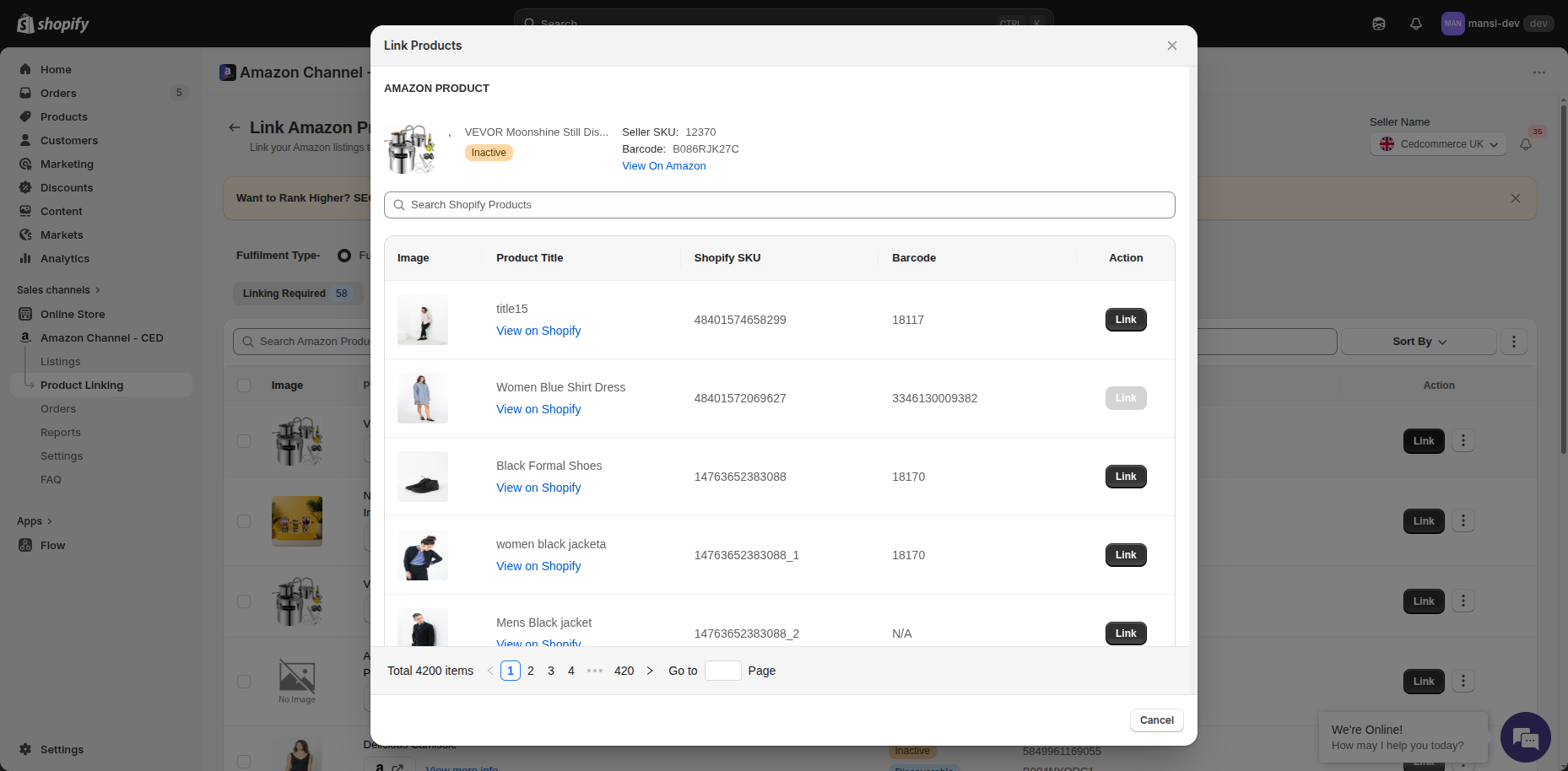
- A Link Products dialog opens. The top of the dialog shows the Amazon product you're linking — image, title, Seller SKU, Barcode, and a View on Amazon link so you can confirm it's the right one.
- Below it, you'll see a list of your Shopify products with image, title, Shopify SKU, and Barcode. Use the Search Shopify Products bar at the top to find the one that matches.
- Click the Link button next to the right Shopify product.
That's it — once you click Link, the Amazon listing is paired with that Shopify product, moves out of Linking Required, and shows up under the Linked tab. From now on, status and inventory updates flow between the two products through Sync Status.
Note: A Shopify product can only be linked to one Amazon listing at a time. If a row's Link button is greyed out, that Shopify product is already paired with another Amazon listing — you'll need to unlink it first before linking it somewhere else.
Tip: Make sure the variation type matches — a simple Shopify product can only be linked to a simple Amazon listing, and a parent product to a parent listing. The app blocks the link otherwise.