Map Amazon return reasons (Order Settings)
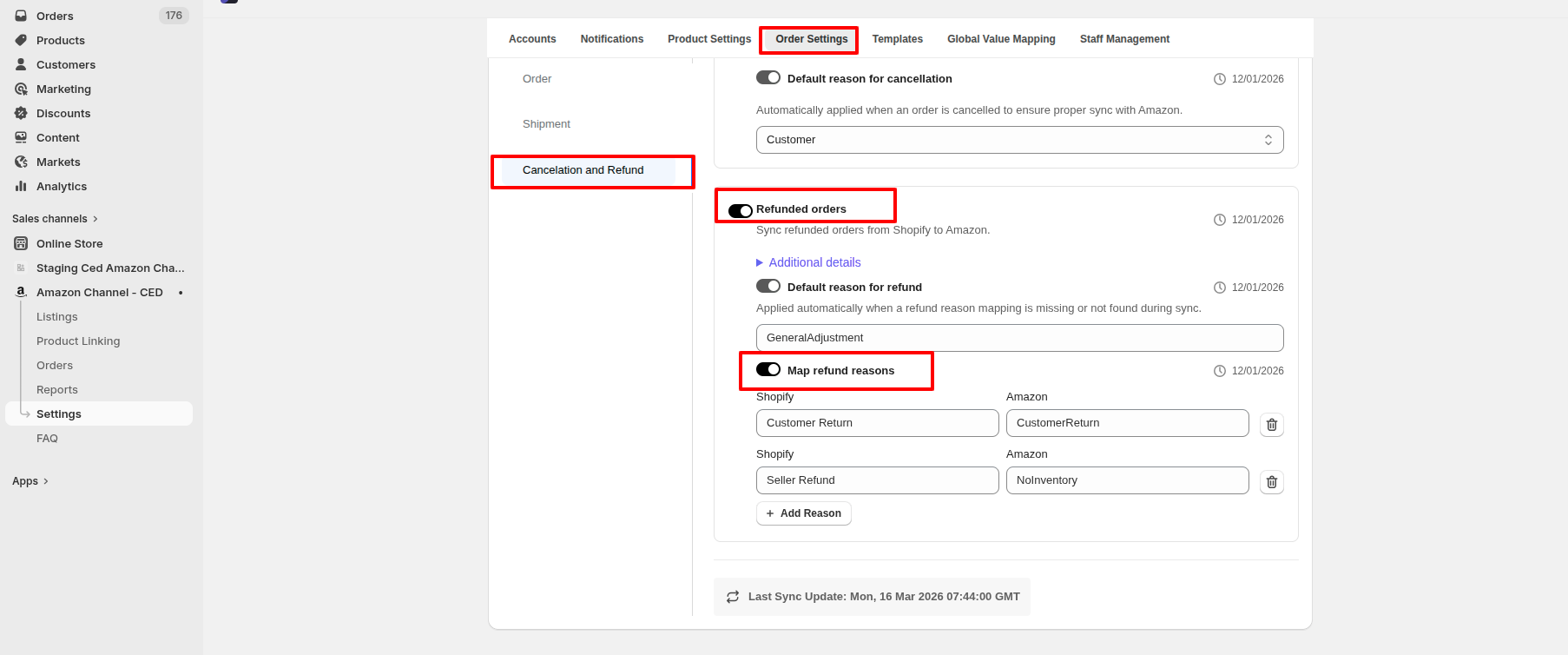
When you issue a refund in Shopify, the app converts your Shopify refund reason into one of Amazon's allowed reasons before sending the refund to Amazon. This conversion comes from the Map refund reasons mapping you set up under Order Settings. If a Shopify reason isn't in the mapping, the app uses the Default reason for refund instead.
Where to configure it
- Open Settings in the app's left navigation.
- Go to Order Settings → Cancelation and Refund.
- Make sure Refunded orders is turned on (this is what enables Shopify-to-Amazon refund sync overall).
- Find the Map refund reasons toggle and turn it on.
Add a mapping
Each row maps one Shopify reason (left column) to one Amazon reason (right column).
- Click + Add Reason.
- Shopify — type the Shopify refund reason exactly as it appears in your Shopify refunds (example:
Customer Return,Seller Refund). - Amazon — type one of Amazon's allowed reasons (example:
CustomerReturn,NoInventory). - Repeat for every Shopify reason you commonly use.
- Click Save when done.
To remove a row, click the trash icon next to it.
Default reason for refund
Above the mapping table is the Default reason for refund toggle. When turned on, the app applies the value you choose here whenever a refund comes through with a Shopify reason that isn't in your mapping.
The factory default is GeneralAdjustment. You can change it to any of Amazon's allowed reasons.
Amazon's allowed refund reasons
Pick from this list when filling in the Amazon column or setting the default:
- NoInventory — you can't fulfill, item is out of stock.
- CustomerReturn — buyer returned the item.
- GeneralAdjustment — general / catch-all adjustment.
- CouldNotShip — order couldn't be shipped.
- DifferentItem — buyer received the wrong item.
- Abandoned — order abandoned.
- CustomerCancel — buyer cancelled / changed their mind.
- PriceError — pricing was wrong on the listing.
- ProductOutofStock — item is out of stock.
- CustomerAddressIncorrect — buyer provided the wrong address.
- Exchange — refund associated with an exchange.
- Other — fallback when nothing else fits.
- CarrierCreditDecision — carrier credit / claim driven.
- RiskAssessmentInformationNotValid — risk / fraud check on the order.
- CarrierCoverageFailure — carrier couldn't deliver.
- TransactionRecord — accounting / transaction adjustment.
- Undeliverable — package returned as undeliverable.
- RefusedDelivery — buyer refused the delivery.
Tip
Keep your Shopify refund reasons short and consistent. A single mapping row covers every refund of that exact wording — variants like "Customer Return" vs "customer return" vs "Cust Return" are treated as separate Shopify reasons.