Map Shopify attribute values to Amazon-accepted values
Some Shopify attribute values don't match what Amazon expects (e.g., your Shopify product uses Red but Amazon's listing schema requires Cherry Red). The Global Value Mapping tab lets you build named lists that translate Shopify values into Amazon-accepted values — applied automatically during product upload.
Steps
- Go to Settings → Global Value Mapping.
- Click Add more List in the top-right.
- The Edit attribute mapping dialog opens. Enter:
- List Name (required) — a label for this mapping list (e.g.,
Color, Size Format, Material). - Shopify Value — the value that appears on Shopify products.
- Amazon Value — the corresponding Amazon-accepted value.
- Click Add attribute to add more value pairs to the same list.
- Click Save.
How it's used
When the app uploads or updates a product on Amazon, it scans your products' attributes against every list under Global Value Mapping. If a Shopify value matches an entry, the app substitutes the mapped Amazon value before sending the listing — so Amazon receives the term it actually accepts.
Note
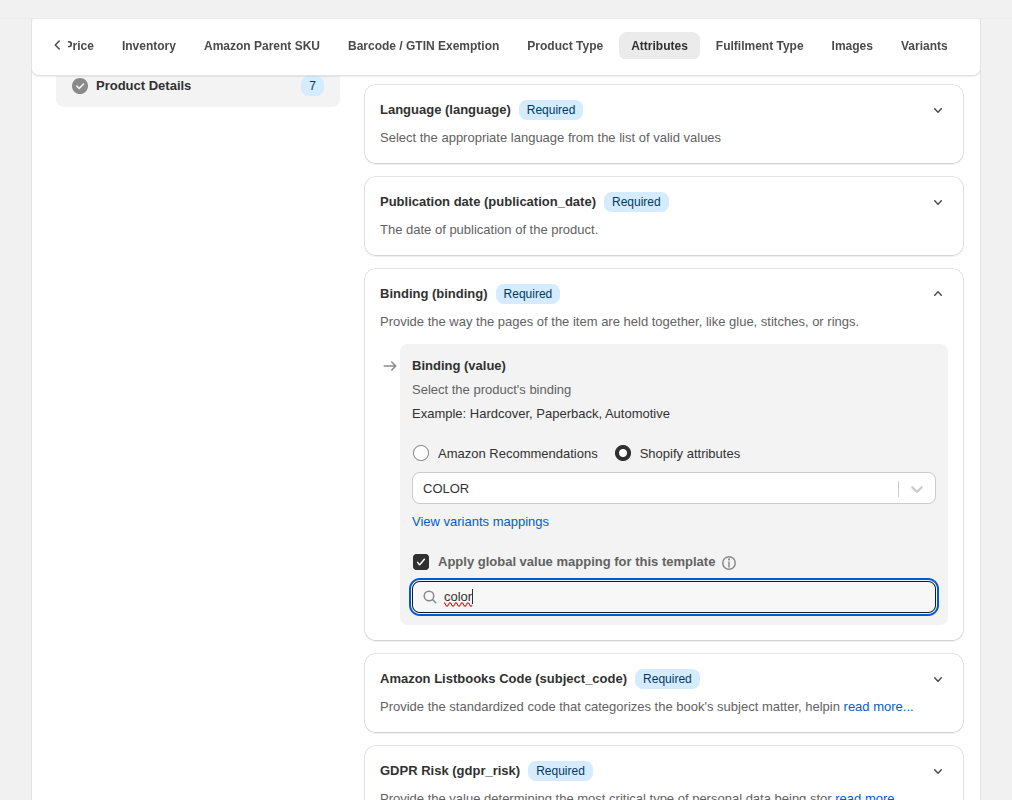
To apply a Global Value Mapping list at the Product Edit or Template level, open that attribute and tick the Apply global value mapping for this template checkbox, then save the attribute.
Related Articles
Map Amazon return reasons (Order Settings)
When you issue a refund in Shopify, the app converts your Shopify refund reason into one of Amazon's allowed reasons before sending the refund to Amazon. This conversion comes from the Map refund reasons mapping you set up under Order Settings. If a ...
Map Shopify carriers to Amazon carrier codes
When a Shopify order is fulfilled with tracking, the app sends the shipment confirmation to Amazon. Amazon only accepts shipment confirmations with one of its predefined carrier codes (UPS, USPS, FedEx, DHL, Royal Mail, etc.). Shopify, on the other ...
How do I map attributes in the CedCommerce Amazon Channel to meet GPSR standards?
Option 1: Mapping Attributes via Product Edit Navigate to the Product Edit Page Go to the Listings section and select the product you want to edit. Assign an Amazon Category Scroll down to the Add Amazon Category section. If the product isn’t yet ...
Map Shopify refund reasons to Amazon refund reasons
Shopify and Amazon use different vocabularies for refund reasons. To make sure each Shopify reason syncs to a valid Amazon equivalent (rather than falling back to the default), set up a mapping under Map refund reasons. Steps Go to Settings → Order ...
Getting Started with CedCommerce Amazon Channel
Welcome to the CedCommerce Amazon Channel App! Effortlessly manage your Amazon business from Shopify with a single, integrated solution. The CedCommerce Amazon Channel App allows sellers to connect multiple Amazon Seller Accounts in one place, ...