Upload a product as a New Listing
Use a New Listing when your product does not yet exist on Amazon. You provide the full product details — title, description, barcode, category, attributes, and images — and Amazon creates a new product page (ASIN) for it.
Steps
1. Open the product and set the Product Title
On the Listings page, click the product you want to upload. At the top of the edit page, under List As, keep New Listing selected.
In the Product Title section, choose one of two options:
- Set same 'Title' as Shopify — reuses your Shopify title (up to 200 characters).
- Set a custom 'Title' — type a title made specifically for Amazon.
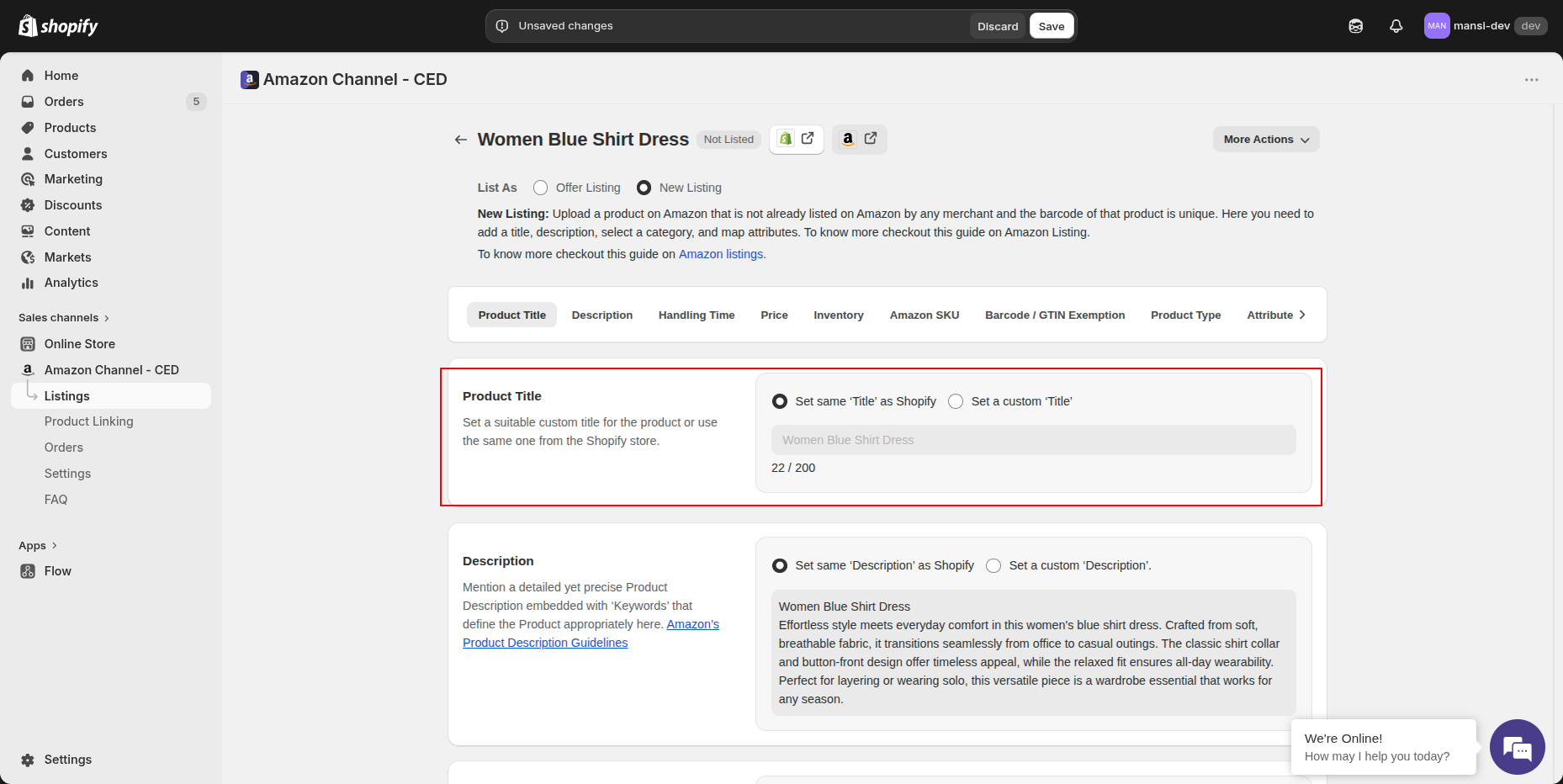
Below it, fill the Description, Handling Time, Price, Inventory, and Amazon SKU sections. For each field you can keep the Shopify value or set a custom one.
2. Set Barcode / GTIN Exemption and Product Type
In the Barcode / GTIN Exemption section:
- If you have a barcode, pick the type (UPC, EAN, GTIN, or ASIN) and let the app use the Shopify barcode.
- If you do not have a barcode but Amazon has approved your GTIN exemption, tick "Check this if you have already applied for a Barcode Exemption".
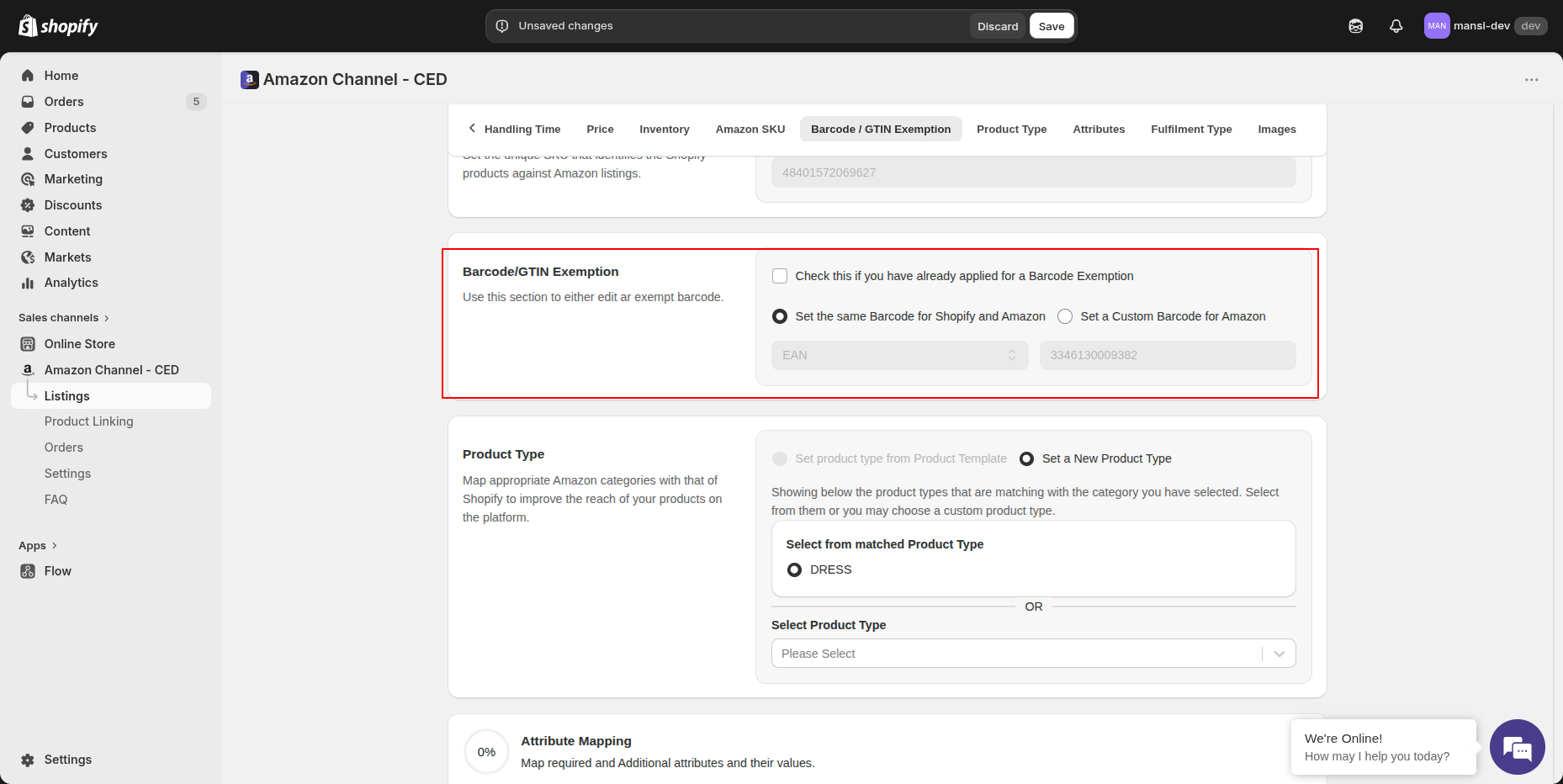
Product Type: The app automatically selects the matching Amazon product type based on your product's title and description, so you usually don't need to set it manually. If the auto-selected type isn't the right fit, override it by choosing a custom product type from the dropdown.
3. Fill Attribute Mapping
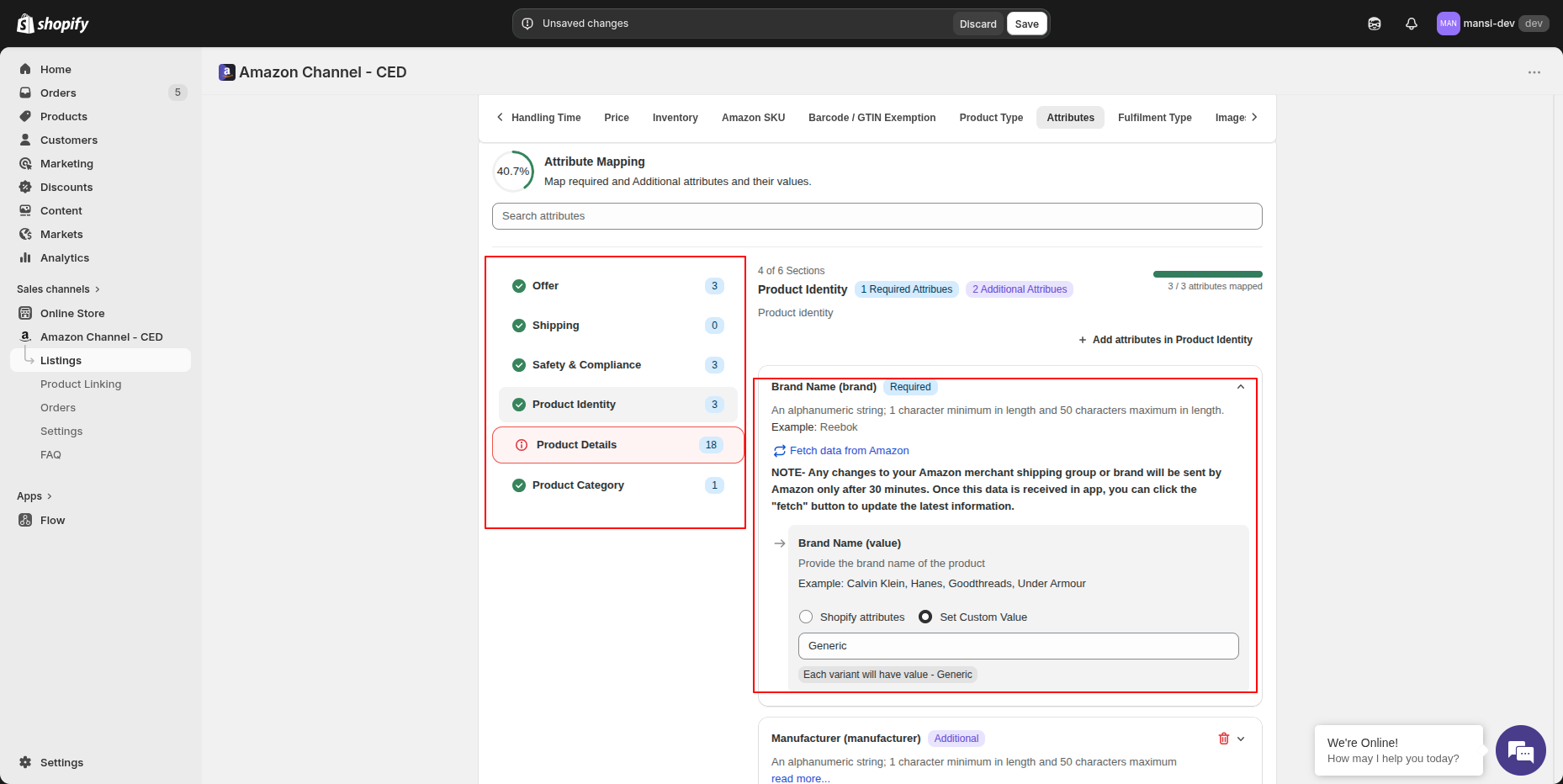
Scroll to the Attribute Mapping section. Amazon's attributes are organized into six groups: Offer, Shipping, Safety & Compliance, Product Identity, Product Details, and Product Category.
Work through each group and fill in every attribute marked Required — these are the fields Amazon will not accept the listing without. Within each group, you can map a Shopify field to the Amazon attribute or click Set Custom Value to enter a fixed value.
Brand Name (special case): If your brand is not enrolled in the Amazon Brand Registry, click Set Custom Value and type the brand name exactly as it should appear on the Amazon listing.
4. Select images, Fulfilment Type, and Save
- Images — use the Shopify images or upload up to 9 custom images for Amazon.
- Fulfilment Type — choose FBA or FBM.
- Click Save at the top of the page.
5. Upload the product
Go back to the Listings page. Tick the checkbox of the product you saved, then click Select Actions → Upload Product(s).
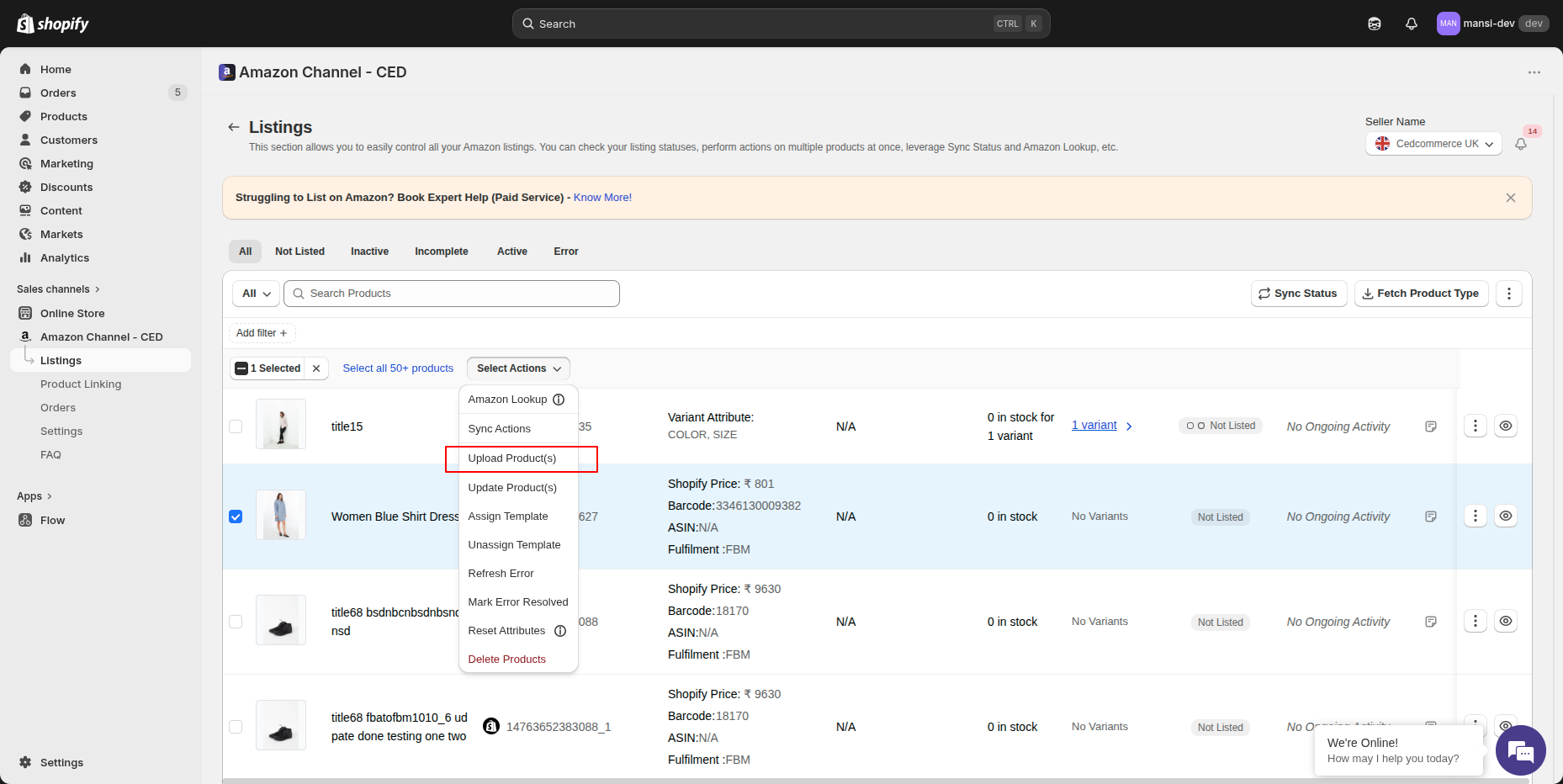
The app submits the listing to Amazon. Once Amazon accepts it, a new ASIN is created and the product moves out of Not Listed status.